


Product Settings
Configure product attributes, variations, and how products are displayed on your store. Product attributes allow customers to select different options like Box, Origin, Pack Size, Volume, Weight and more.
Product Variations Type
Setting Up Product Attributes
Attributes let you define extra product data, such as size, color, material, or any other product characteristic. You can use these attributes in the shop sidebar using the "layered nav" widgets, and they're essential for creating product variations.
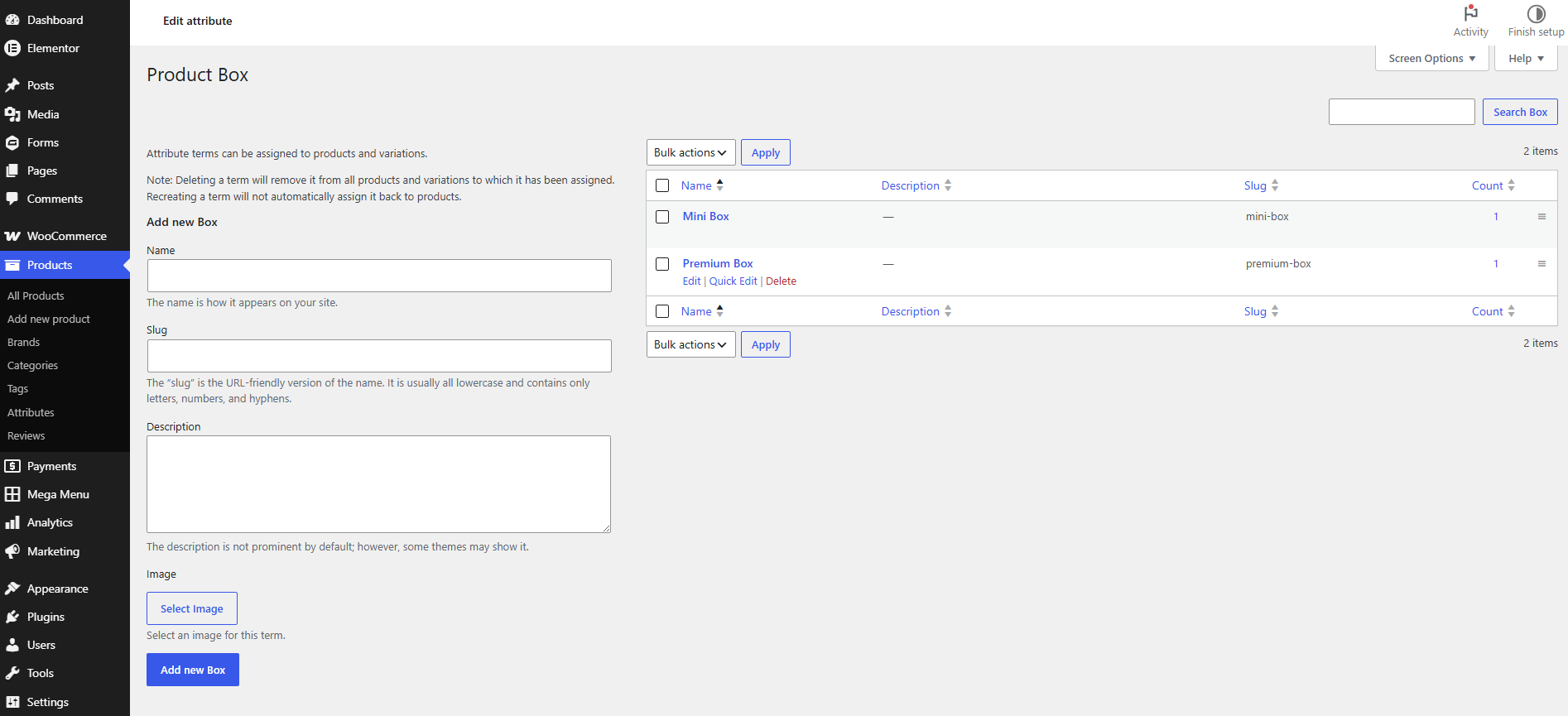
Attribute terms can be assigned to products and variations. Deleting a term will remove it from all products and variations to which it has been assigned. Recreating a term will not automatically assign it back to products.
Creating Attributes
To create a new product attribute:
- Go to Products → Attributes in your WordPress admin
- In the "Add new attribute" section, enter:
- Name: The attribute name (e.g., Box, Origin, Pack Size, Volume, Weight)
- Slug: A unique URL-friendly identifier (automatically generated from the name)
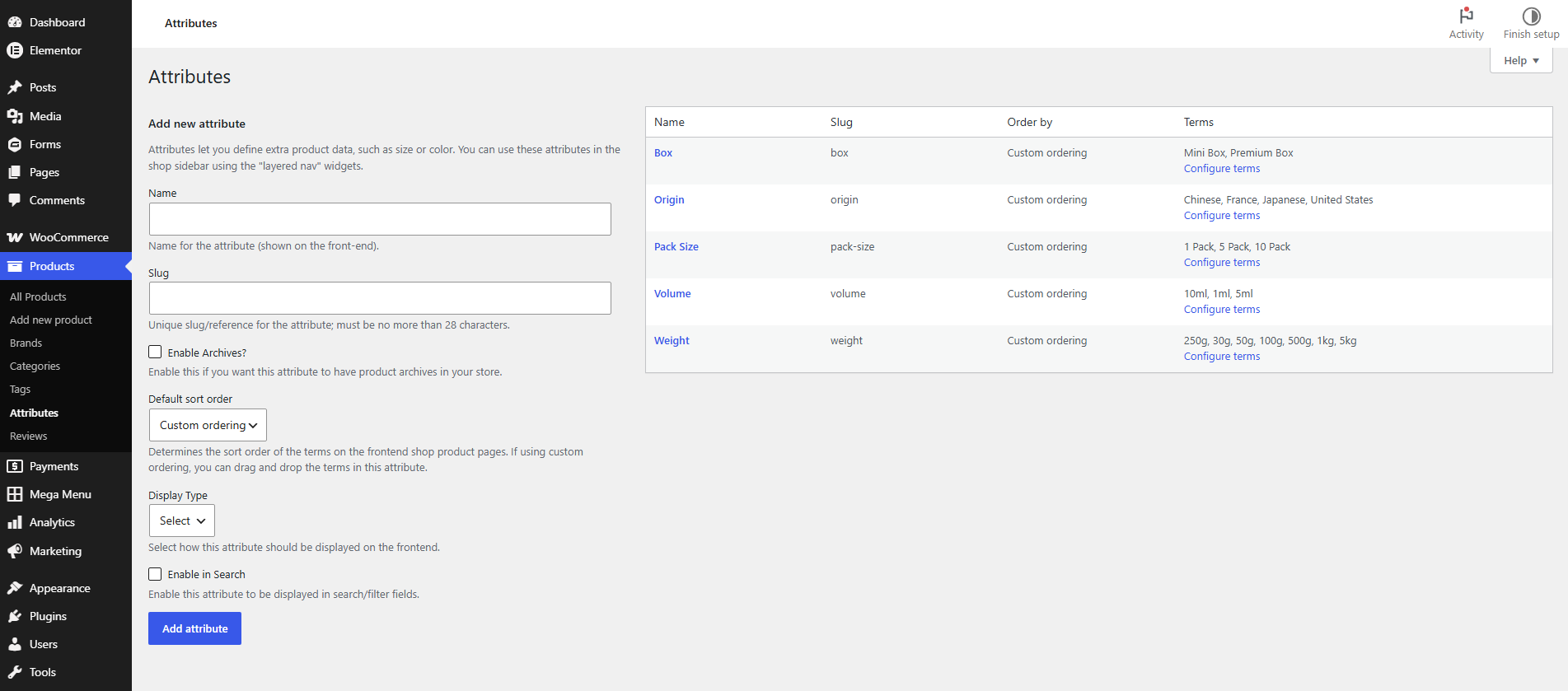
Attribute Types
Different attribute types have different configuration options. Here are the most common types:
Weight Attributes
Configuring Weight Terms:
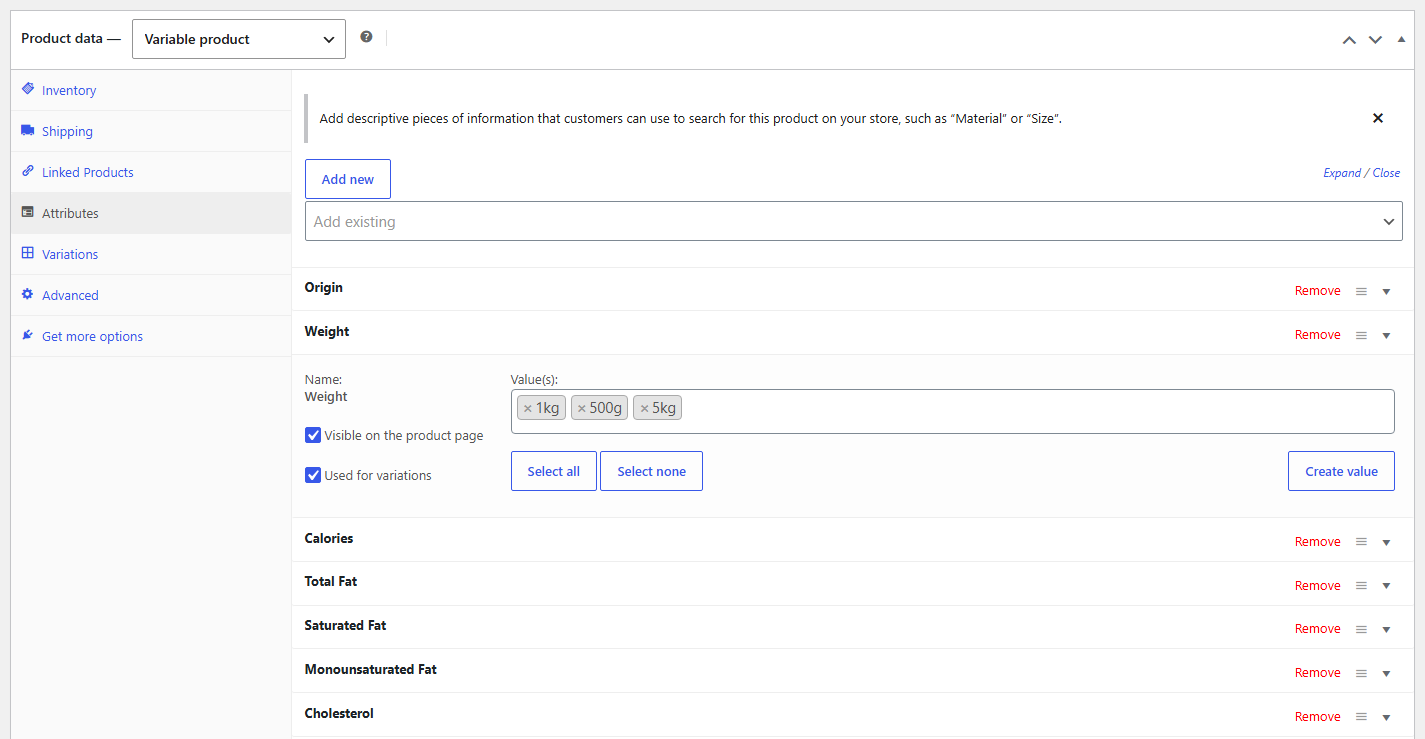
Adding WeightAttributes to Products:
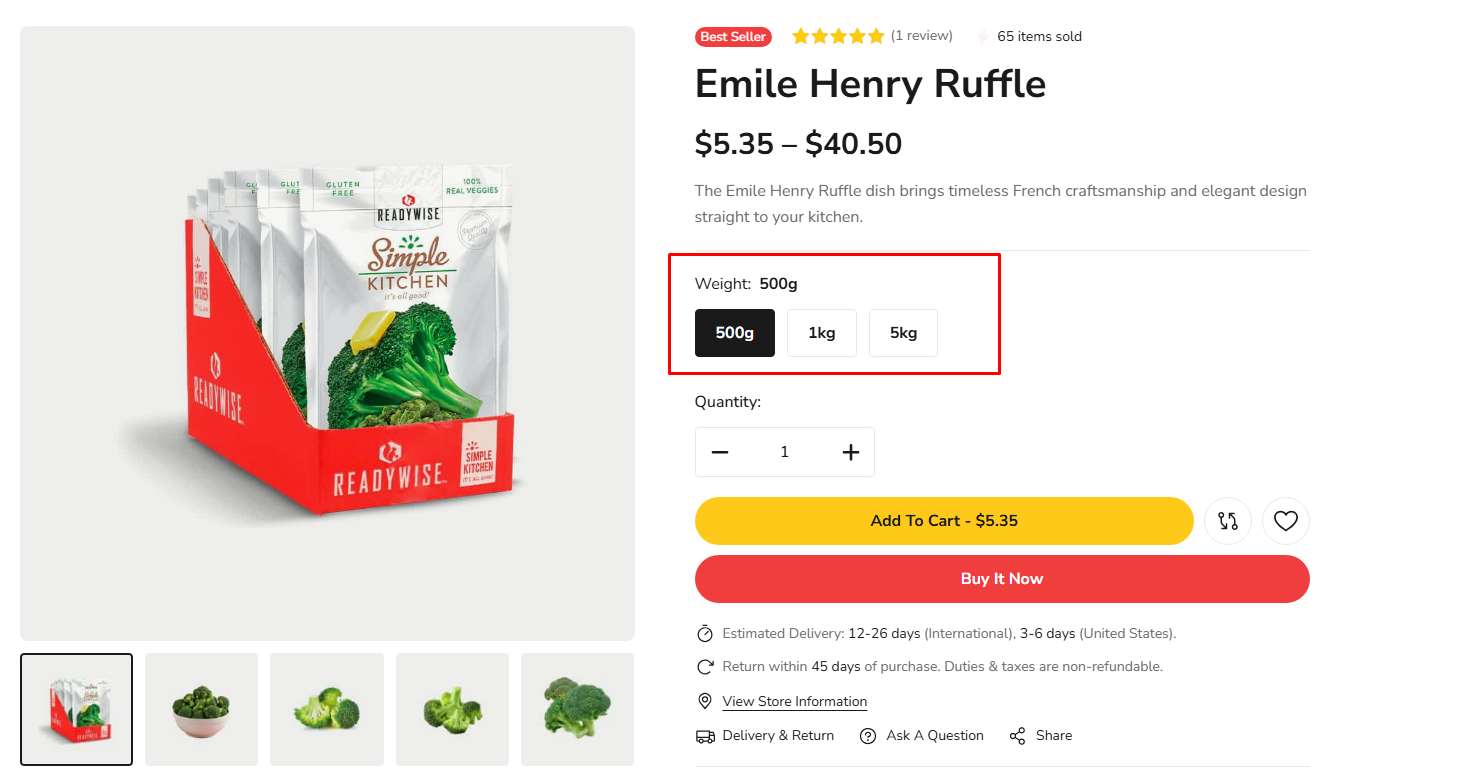
Frontend Display:
Product Variations
Product variations allow you to sell the same product with different options (e.g., different Box, Origin, Pack Size, Volume, Weight, or combinations). Once you've set up attributes and assigned them to a product with "Used for variations" checked, you can create variations.
- In the product edit page, go to the Variations section
- Click Generate variations to automatically create all possible combinations based on your attributes
- Or manually add variations by clicking Add variation
- Configure each variation individually with its own settings
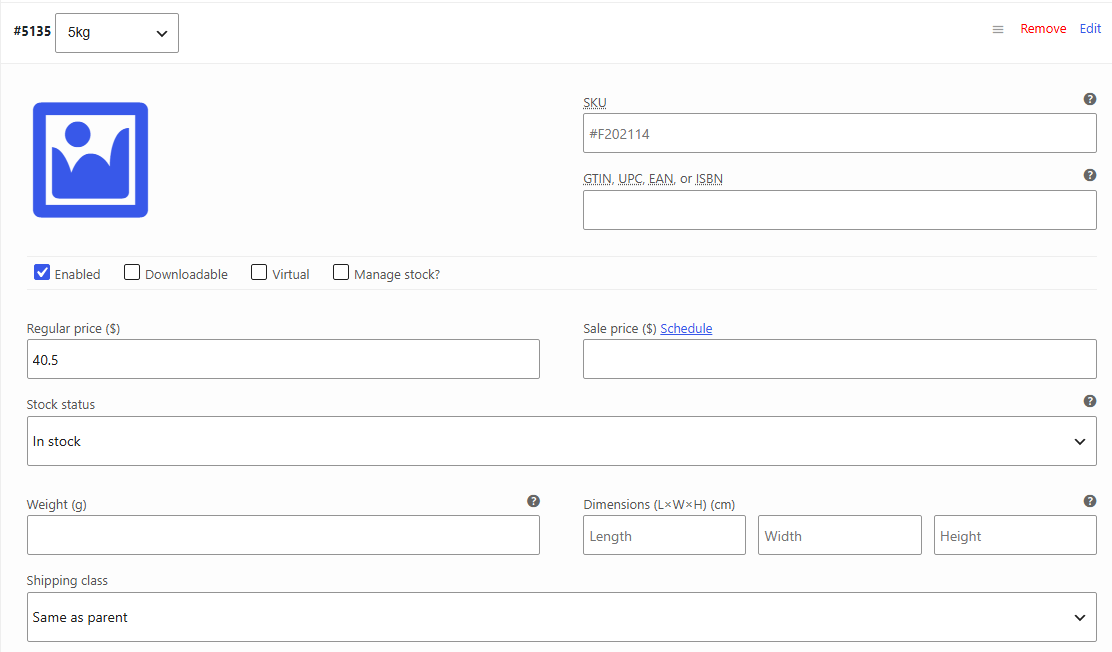
Each variation can have unique settings including:
- Variation Image: Set a main product image for the specific variation
- SKU: Enter a unique stock keeping unit for inventory tracking
- Pricing: Set regular price and sale price (with scheduling options)
- Inventory: Manage stock quantity, backorders, and stock status
- Product Status: Enable/disable variation, set as downloadable or virtual
- GTIN/UPC/EAN/ISBN: Add global product identifiers if applicable
Variation Gallery Images
Add multiple images to create a gallery for each variation. This allows customers to see different views, angles, or details of the specific variation when they select it.
- In the variation settings, scroll to Variation Gallery Images
- Click Add Gallery Images
- Select multiple images from your media library
- Arrange images by dragging to reorder
- Remove images by clicking the 'x' icon on each thumbnail
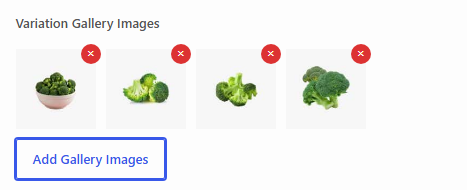
Use gallery images to showcase different angles, details, or styling options for each variation. This helps customers make informed purchasing decisions.