

Product Label & Sold
Add product labels and display sold count to highlight special products and show sales performance. These features help draw customer attention and build trust through social proof.
These settings are configured individually for each product in the product edit page. Go to Products → All Products, edit a product, and navigate to the Advanced tab to configure the label and sold count settings.
Product Label & Sold
Configure product labels and sold count to highlight products and show sales performance.
Product Label:
Assign a label to your product to highlight special offers, new arrivals, or featured items. Product labels appear as badges on the product page.
Available Label Options:
- Select Label: No label (default)
- Best Seller: Highlight best-selling products
- Featured: Mark featured products
- New Arrival: Indicate newly added products
- On Sale: Show products on sale
- Trending: Mark trending products
- Hot Deal: Highlight hot deals and special offers
- Pre-Order: Indicate pre-order products
- Exclusive: Mark exclusive products
- Top Rated: Highlight top-rated products
Product Sold:
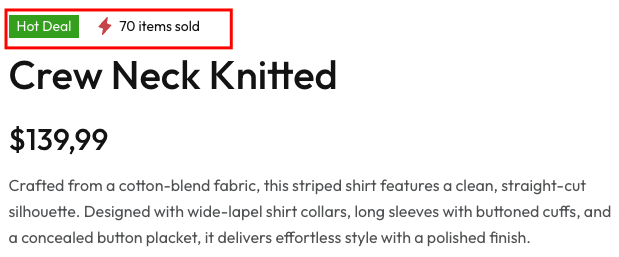
Display the number of items sold to create social proof and encourage purchases. Enter the number of items sold for the product (e.g., 70). This number will be displayed on the product page with a lightning bolt icon.

Frontend Display
When configured, the product label appears as a colored badge (e.g., green "Hot Deal" badge) and the sold count is displayed with a lightning bolt icon (e.g., "⚡ 70 items sold") at the top of the product information section.
Frontend Example:
Product labels and sold counts are effective marketing tools. Use labels to highlight special offers or new products, and display sold counts to create urgency and social proof that encourages customers to make a purchase.