


General Settings
Configure general theme settings that affect your entire site, including the announcement bar, notifications, and other site-wide options.
To access the announcement bar settings, navigate to Woozio → Theme Options in your WordPress admin sidebar.
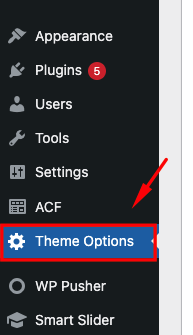
Announcement Bar
The announcement bar appears at the top of your header and is perfect for displaying promotional messages, shipping information, or important notices. All announcement bar settings are configured in Woozio → Theme Options → General.

Configuring Notifications
Set up multiple notification messages that can rotate or display in sequence:
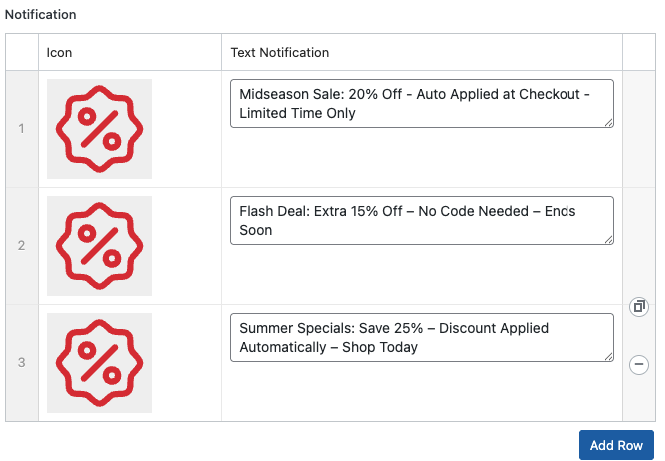
- Go to Woozio → Theme Options → General in WordPress admin
- Find the Notification section
Notification Settings
Configure how notifications are displayed:
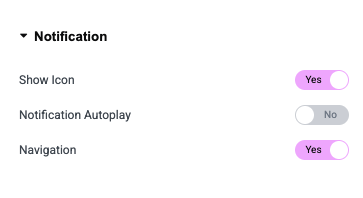
In the Content tab of the notification settings:
- Show Icon: Toggle to show/hide the notification icon
- Notification Autoplay: Enable automatic rotation between multiple notifications
- Navigation: Enable left/right arrow navigation for users to manually browse notifications
Use contrasting colors for your announcement bar to ensure it stands out. Black or dark backgrounds with white text work well for most designs.
Title Bar
The title bar (breadcrumb) appears above page content and helps users navigate your site. Configure title bar settings in Woozio → Theme Options → General.

Title Bar Configuration
- Go to Woozio → Theme Options → Title Bar
- Find the Title Bar section
Use a subtle background for the title bar that complements your header design. Avoid making it too prominent as it can distract from your main content.
Information
Display contact information, store details, or helpful links in your header or footer. Configure information settings in Woozio → Theme Options → General.

Configuring Information
- Go to Woozio → Theme Options → General
- Find the Information section

Keep information concise and relevant. Too many items can clutter your header. Consider moving less critical information to the footer.
Social Media
Display social media icons and links in your header or footer. Configure social media settings in Woozio → Theme Options → General.

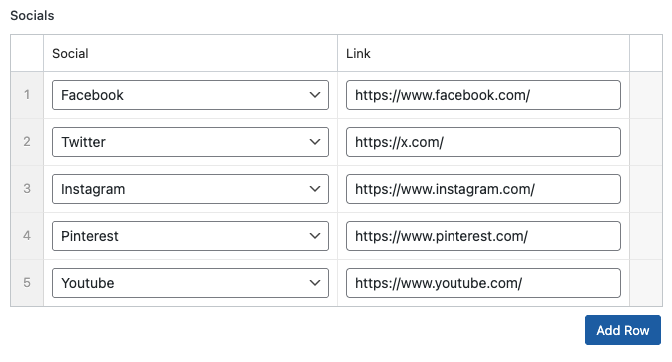
Social Media Styling
Customize the appearance of social media icons:
- Icon Size: Adjust the size of social icons
- Icon Color: Set default icon color
- Hover Color: Set color when users hover over icons
- Icon Style: Choose between filled, outlined, or custom styles
- Spacing: Adjust spacing between icons
Only include social media accounts that you actively maintain. Empty or inactive accounts can harm your brand credibility.
Payment Icons
Display accepted payment methods to build trust and inform customers. Configure payment icons in Woozio → Theme Options → General.

Configuring Payment Methods
- Go to Woozio → Theme Options → General
- Find the Payment Icons section
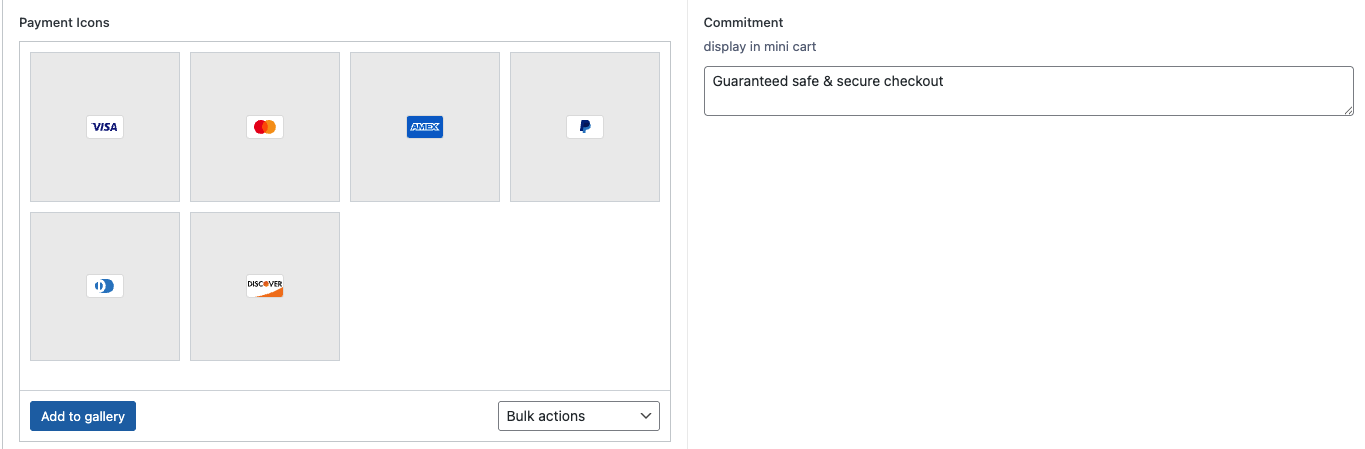
Display payment icons in your footer or checkout page to reassure customers about secure payment options. This can help reduce cart abandonment.
Copyright
Configure the copyright text that appears in your footer. Set copyright settings in Woozio → Theme Options → General.

Configuring Copyright
- Go to Woozio → Theme Options → General
- Find the Copyright section
you can use shortcodes like {year} to display the current year
automatically.
Preloader
Configure a loading animation that displays while your site loads. Set preloader settings in Woozio → Theme Options → General.
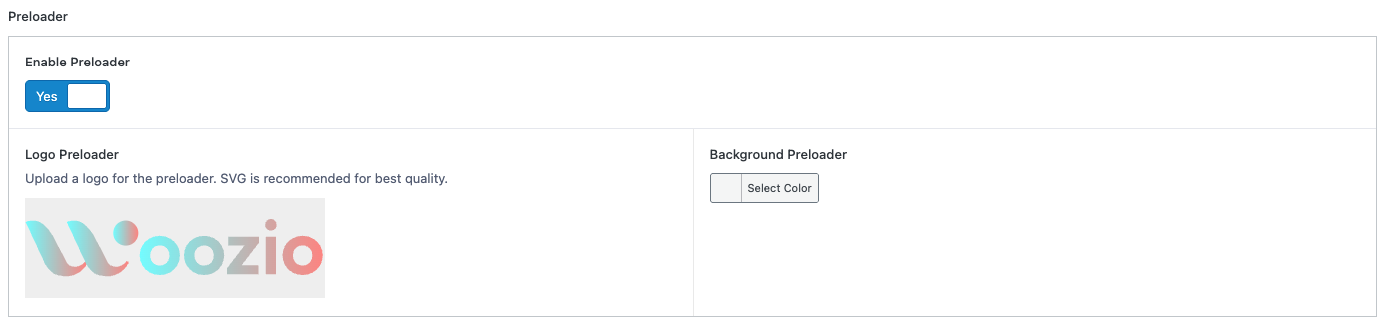
Configuring Preloader
- Go to Woozio → Theme Options → General
- Find the Preloader section
Preloaders improve perceived performance, but keep them subtle and fast.