


Header Customization
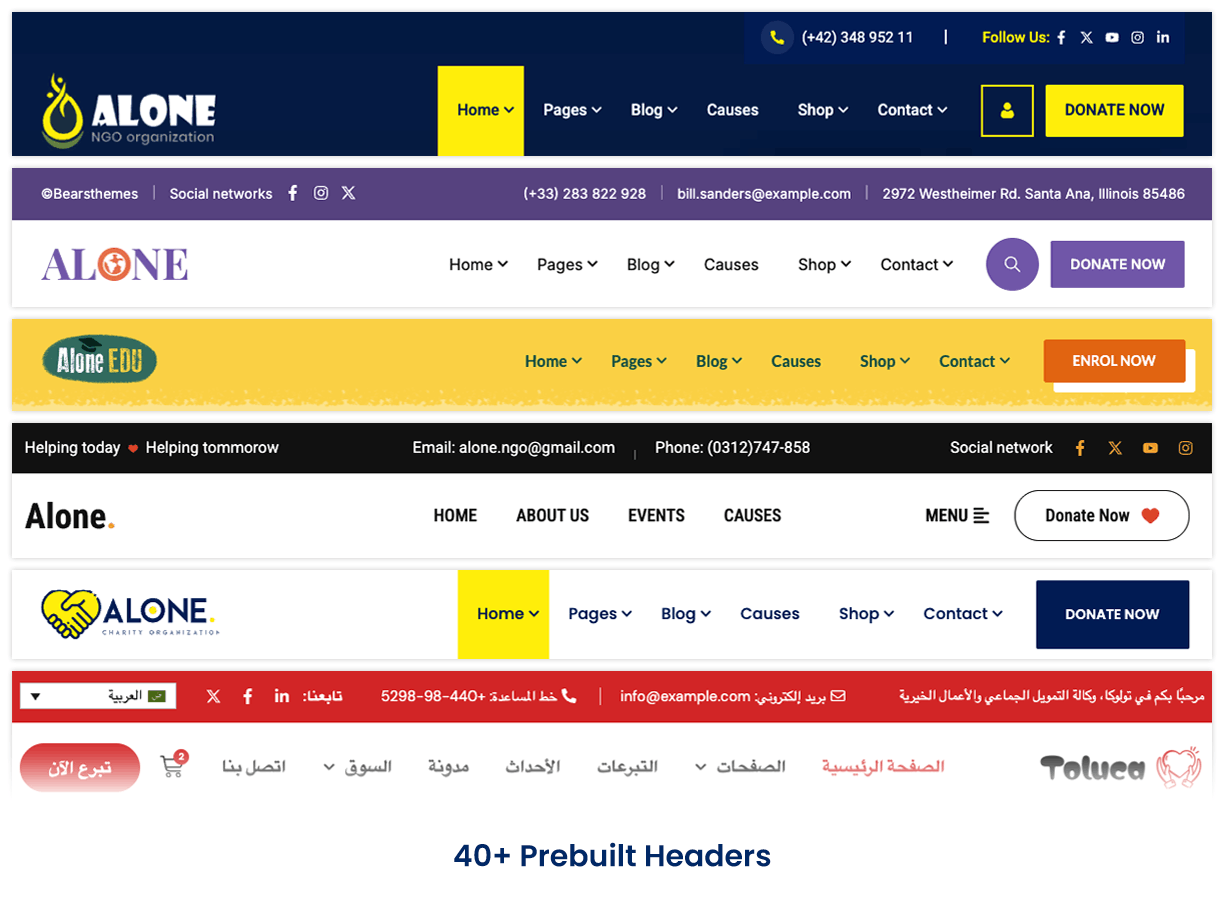
Alone offers 40+ pre-built header layouts to choose from, each designed for different industries and use cases. You can customize every aspect of your header including the announcement bar, logo, navigation menu, search functionality, shopping cart, and mobile menu.
Header Layout Presets
Each header layout can be customized to match your brand and requirements.
Setting Display Conditions
After creating or editing your header template, you need to set where it should be displayed on your site. Elementor allows you to display the header across the entire site or only on specific pages.
Display on Entire Site
To display your header template across all pages of your website:
- After saving your header template, click Display Conditions or Publish Settings
- In the modal that appears, you'll see "Where do you want to display your Template?"
- Set the condition to Entire Site:
- Click the dropdown next to "Include"
- Select Entire Site from the options
- Click Save & Close to apply
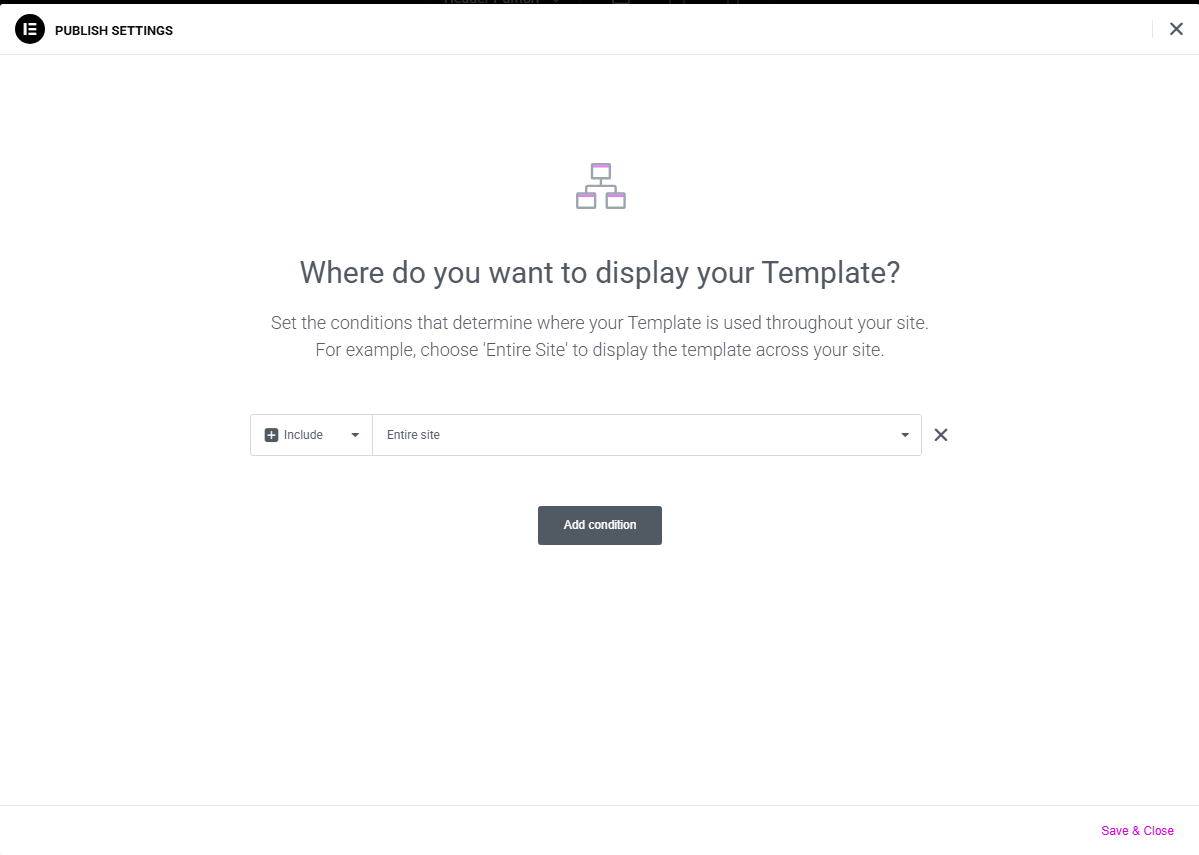
When set to "Entire Site", your header will appear on all pages, posts, and archive pages throughout your website.
Display on Specific Pages
To display your header only on specific pages or page types:
- In the Display Conditions modal, click Add condition
- Configure the condition:
- Include/Exclude: Choose whether to include or exclude pages matching the condition
- Condition Type: Select from options like:
- Singular: Individual pages, posts, or custom post types
- Archive: Category, tag, or custom taxonomy archives
- Front Page: Your homepage
- 404 Page: Error page
- Search Results: Search results page
- Sub-condition: Further refine (e.g., "Pages", "Posts", "Products")
- Specific Selection: Choose specific pages (e.g., "Home Sport", "About Us", etc.)
- Click the X icon to remove a condition if needed
- Add more conditions by clicking Add condition again
- Click Save & Close to apply
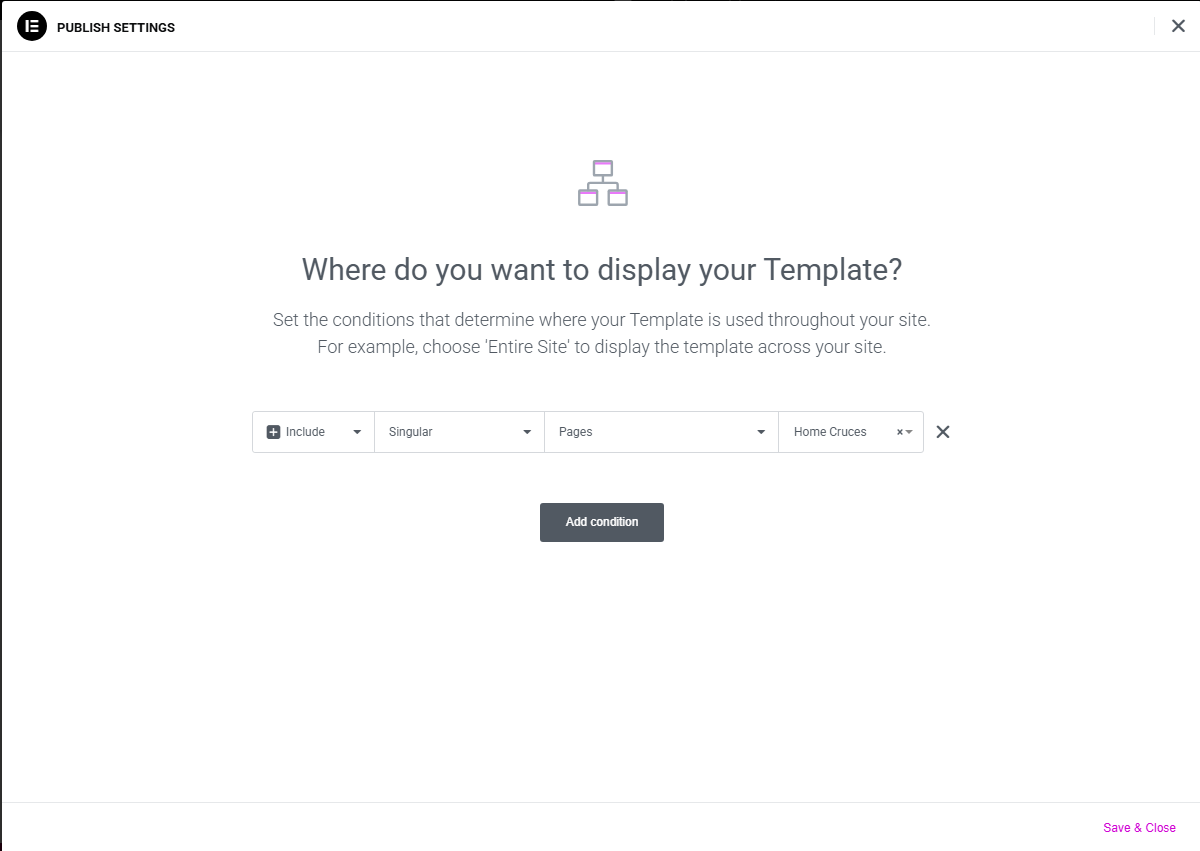
Example Conditions:
- Include → Singular → Pages → Home Sport: Show header only on the "Home Sport" page
- Include → Archive → Product Categories → Electronics: Show header only on Electronics category pages
- Exclude → Singular → Pages → Checkout: Hide header on checkout page
You can add multiple conditions to create complex display rules. Use "Include" to show the header on matching pages, or "Exclude" to hide it on specific pages.