


Mega Menu
Create advanced mega menus with multiple columns, images, custom content, and rich layouts using Elementor's Menu widget. Mega menus provide a better user experience by displaying more information and navigation options in an organized dropdown format.
Adding Menu Widget
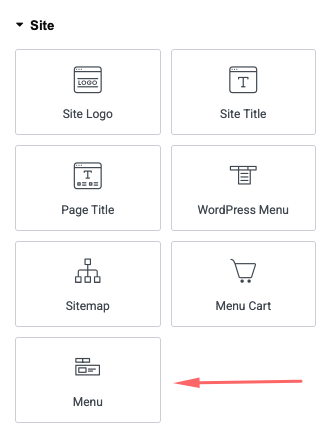
To start creating a mega menu, you need to add the Elementor Menu widget to your header:
- Edit your Header template with Elementor
- In the Elementor panel, find the Site section
- Drag the Menu widget into your header where you want the menu to appear
Enabling Dropdown Content
To create a mega menu, you need to enable dropdown content for menu items:
- Click on the Menu widget you just added
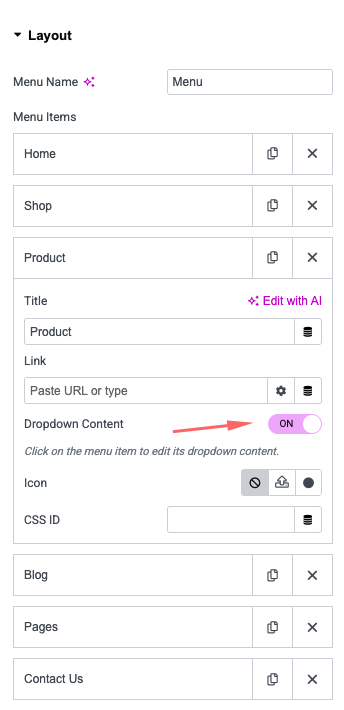
- In the widget settings panel, find the Layout section
- Select a menu item that you want to convert to a mega menu (e.g., "Product", "Shop", "Blog")
- In the menu item settings, find the Dropdown Content toggle
- Turn ON the Dropdown Content toggle
The Dropdown Content toggle must be enabled for each menu item that you want to display as a mega menu. When enabled, you'll be able to add custom content, columns, and widgets to the dropdown area.
Building Mega Menu Content
Once Dropdown Content is enabled, you can build your mega menu by dragging widgets and elements into the dropdown area:
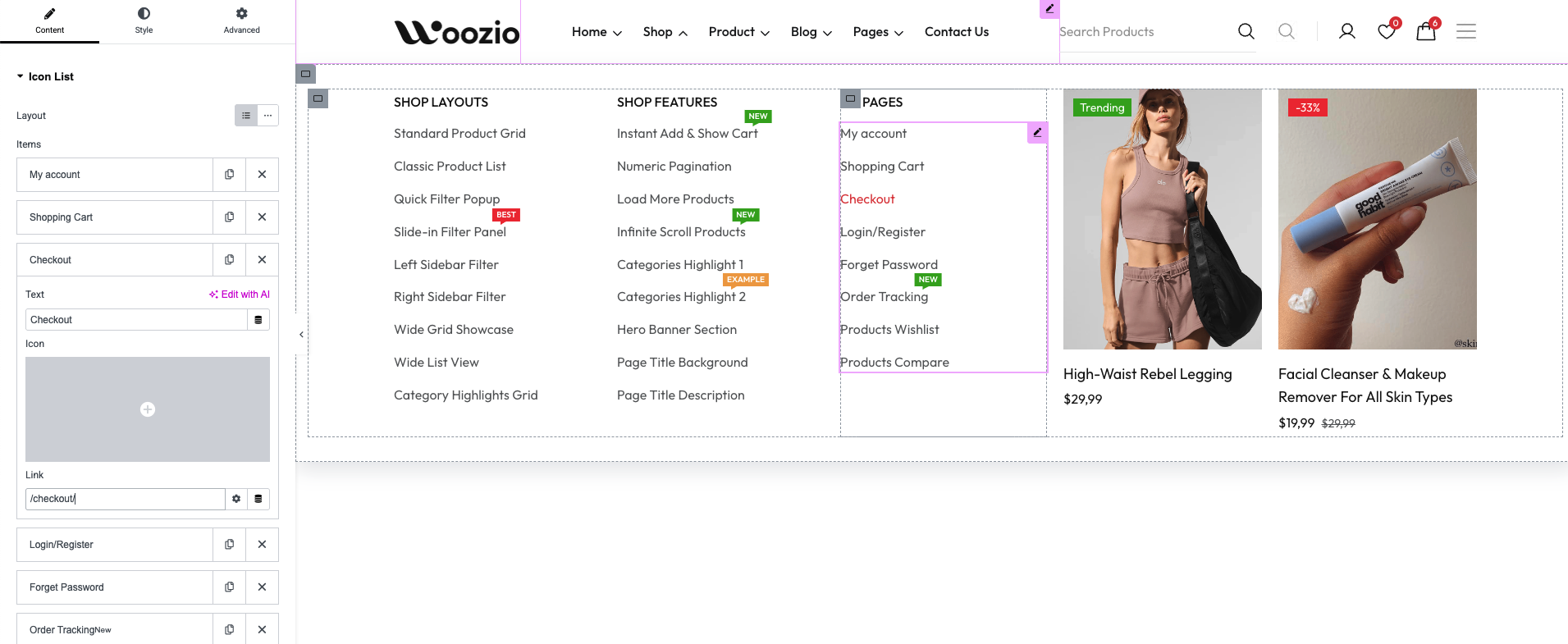
- Click on the menu item with Dropdown Content enabled
- In the dropdown content area, add Columns to organize your content
- You can create 2, 3, 4, or more columns depending on your design needs