


Shop Settings
Configure all shop-related settings including the title bar, product catalog, filters, wishlist, cart, and checkout options in Woozio → Theme Options → Shop.
Shop Title Bar
Configure the Shop Title Bar in Woozio → Theme Options → Shop:
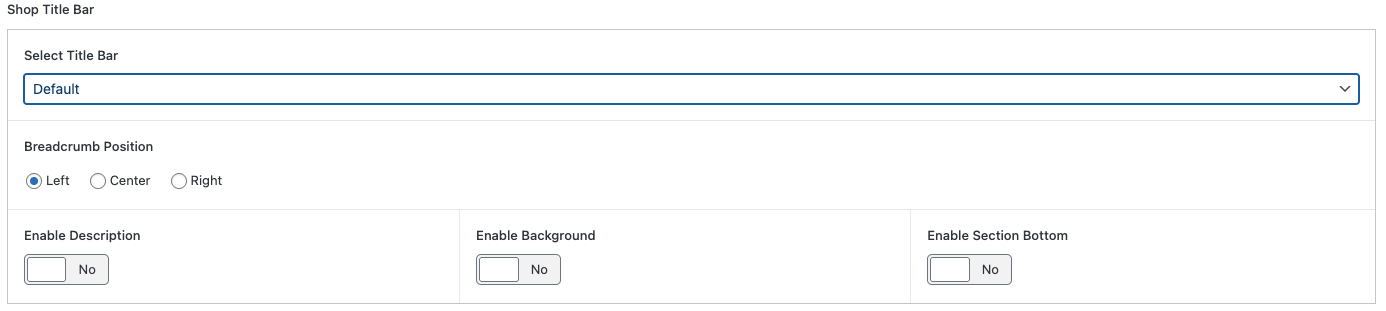
Select Title Bar
Choose your title bar template:
- Default: Use theme title bar
- No Page Title Bar: Hide title bar
Breadcrumb Position
Set breadcrumb alignment:
- Left: Default position
- Center: Center-aligned
- Right: Right-aligned
Enable Description
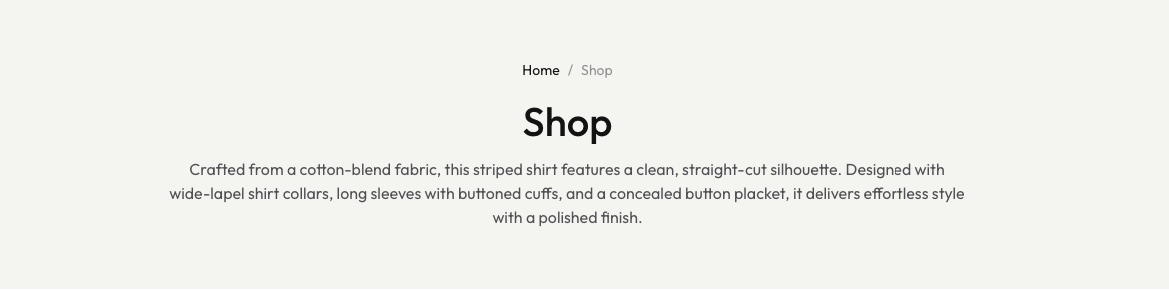
Toggle description text below page title. When enabled, add custom text below "Shop" title.
Enable Background

Toggle background image or color. When enabled, configure:
- Background image upload
- Background color
- Position and overlay settings
Enable Section Bottom
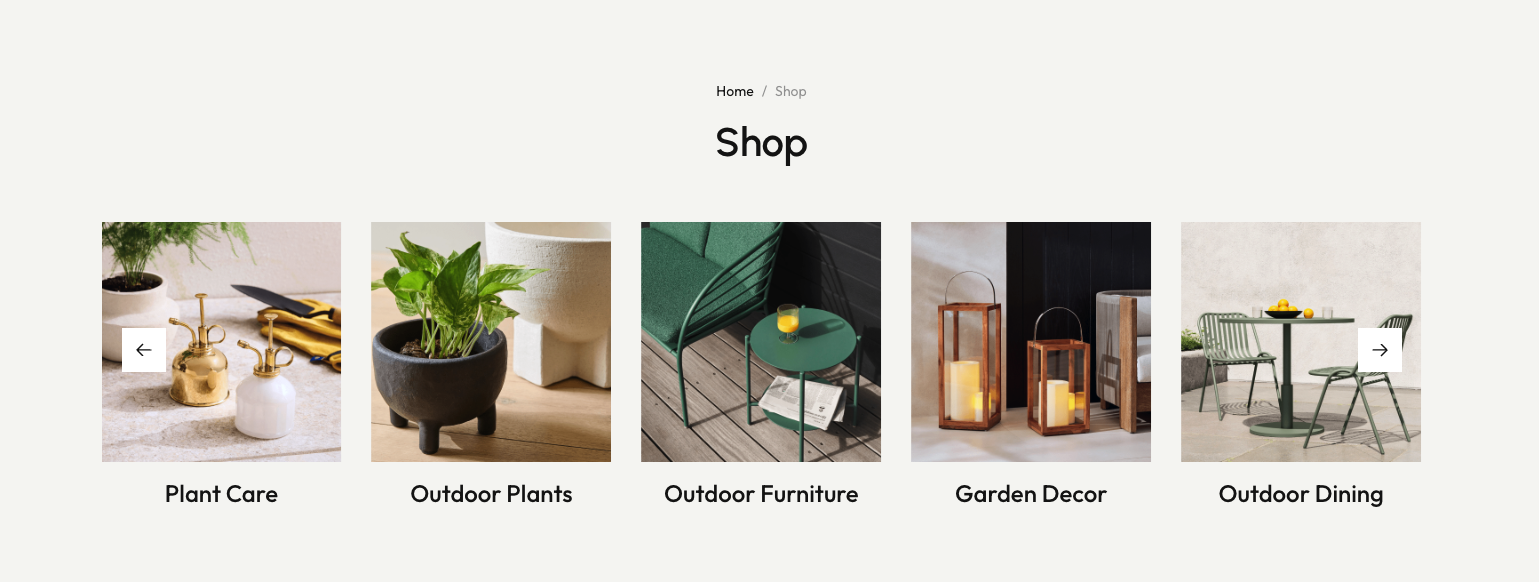
Toggle additional content at bottom of title bar. When enabled, add custom widgets or promotional content.
Shop Content
Configure the layout, sidebar, and pagination options for your shop page in Woozio → Theme Options → Shop:
Content Width
 Set the width of your shop page content:
- Boxed: Content is contained within a fixed-width container (default)
- Full Width: Content spans the full width of the browser window
Use "Boxed" for better readability and focus. Use "Full Width" to maximize product display area, especially useful for large product catalogs.
Sidebar Shop
 Choose whether to display a sidebar on your shop page:
- Sidebar: Show sidebar with filters and widgets
- No Sidebar: Hide sidebar for a full-width product grid
When Sidebar is enabled:
- Sidebar Left: Display sidebar on the left side of products
- Sidebar Right: Display sidebar on the right side of products (default)
When No Sidebar is selected:
- Filter Popup: Filters open in a popup/modal window when clicked
- Filter Dropdown: Filters appear as a dropdown menu above products
Shop Pagination
 Choose how products load on your shop page:
- Default Pagination: Traditional page numbers (1, 2, 3, etc.)
- Infinite Scrolling: Products load automatically as users scroll down
- Load More Button: Products load when users click a "Load More" button
Custom Filters
Configure custom product filters to help customers find products quickly. Set up filter options in Woozio → Theme Options → Shop → Custom Filters.
Setting Product Category
Choose how product categories are displayed in filters:

- Display parent categories only: Show only main categories (no subcategories)
- Display parent and subcategories: Show both parent and child categories
- Select custom categories: Choose specific categories to display
Arrange Filters
Enable filter arrangement to customize which filters appear and their order in your shop sidebar:
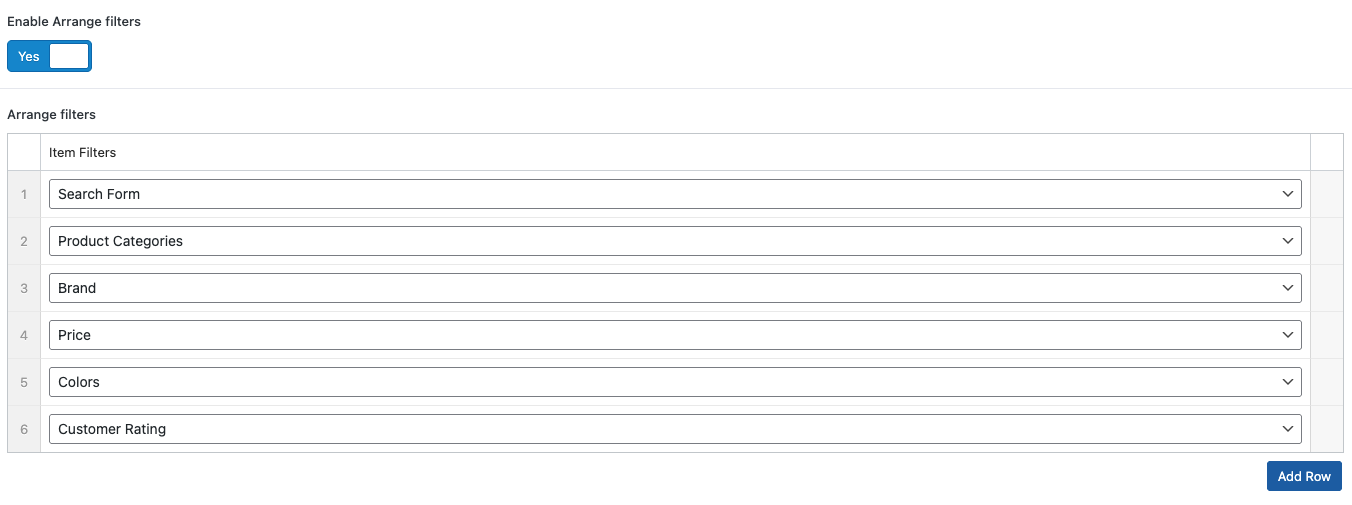
- Enable Arrange filters toggle
- Click Add Row to add filter items
- Select from available filter types:
- Search Form: Product search input
- Product Categories: Category filter dropdown
- Brand: Brand filter options
- Price: Price range slider
- Colors: Color swatch filter
- Customer Rating: Star rating filter
- Text Editor: Custom HTML, text, or media content
- Choose filters: Select the filters you want to display (you can choose some or all available filters)
- Reorder filters: Use the up/down arrows on the left to rearrange filter order
- Custom content: Use "Text Editor" to add custom HTML, promotional banners, or helpful information using the Custom Editor
Product Features
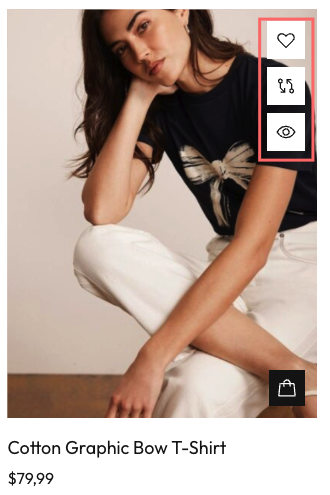
Configure product features (Wishlist, QuickView, Compare) in Woozio → Theme Options → Shop.
Wishlist
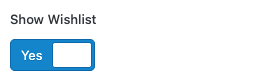
Show Wishlist: Toggle to show/hide wishlist icon on product cards.
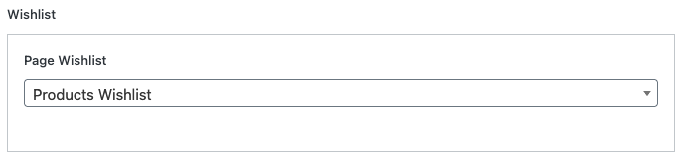
 Page Wishlist: Select the page to display wishlist items (e.g., "Products Wishlist").
Compare
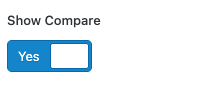
Show Compare: Toggle to show/hide compare icon on product cards.
Page Compare: Select the page to display product comparison (e.g., "Products Compare").
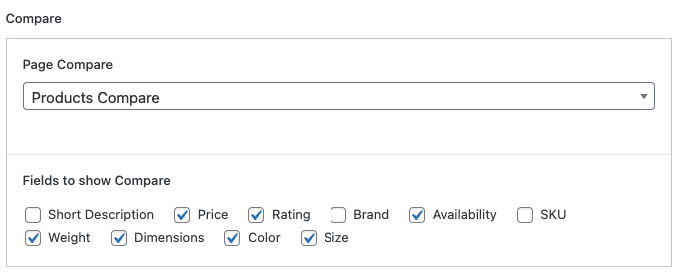
Fields to Show Compare: Select product attributes to display in comparison table (Price, Rating, Availability, Color, Size, etc.).
QuickView
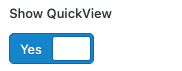
Show QuickView: Toggle to show/hide quick view button on product cards.
Toast Notifications
Configure toast notification settings for user actions in Woozio → Theme Options → Shop.
Wishlist Toast
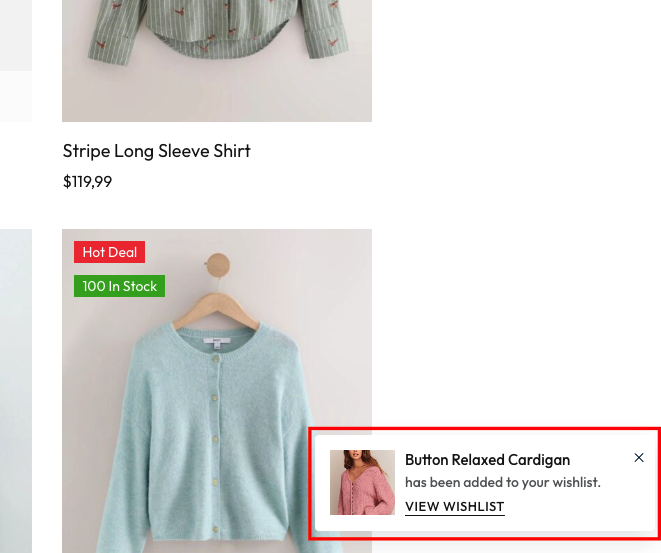
 Wishlist Toast: Show/hide toast notification when adding products to wishlist.
Compare Toast
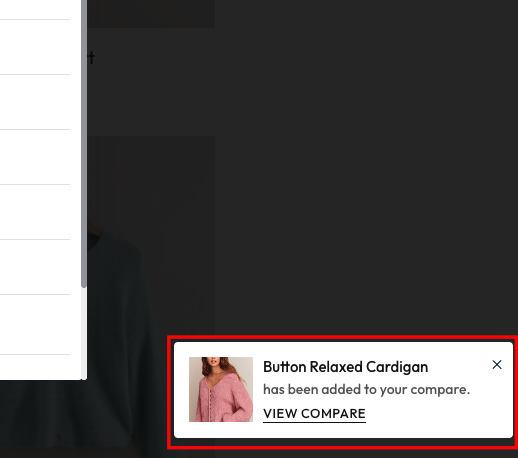
 Compare Toast: Show/hide toast notification when adding products to compare.
Cart Toast
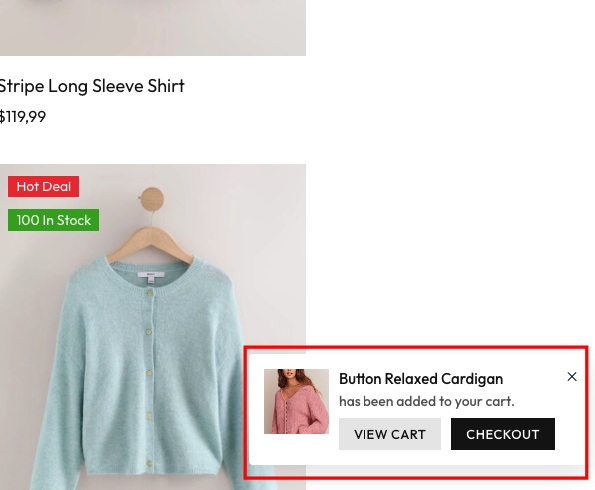
 Cart Toast: Show/hide toast notification when adding products to cart.
 Show Cart Mini: When Cart Toast is disabled, enable this option to automatically display the mini cart dropdown when customers add products to cart.
If both Cart Toast and Show Cart Mini are disabled, no notification or mini cart will appear when products are added to cart.
Product Images
Configure product image sizes and cropping settings in Appearance → Customize → WooCommerce → Product Images.
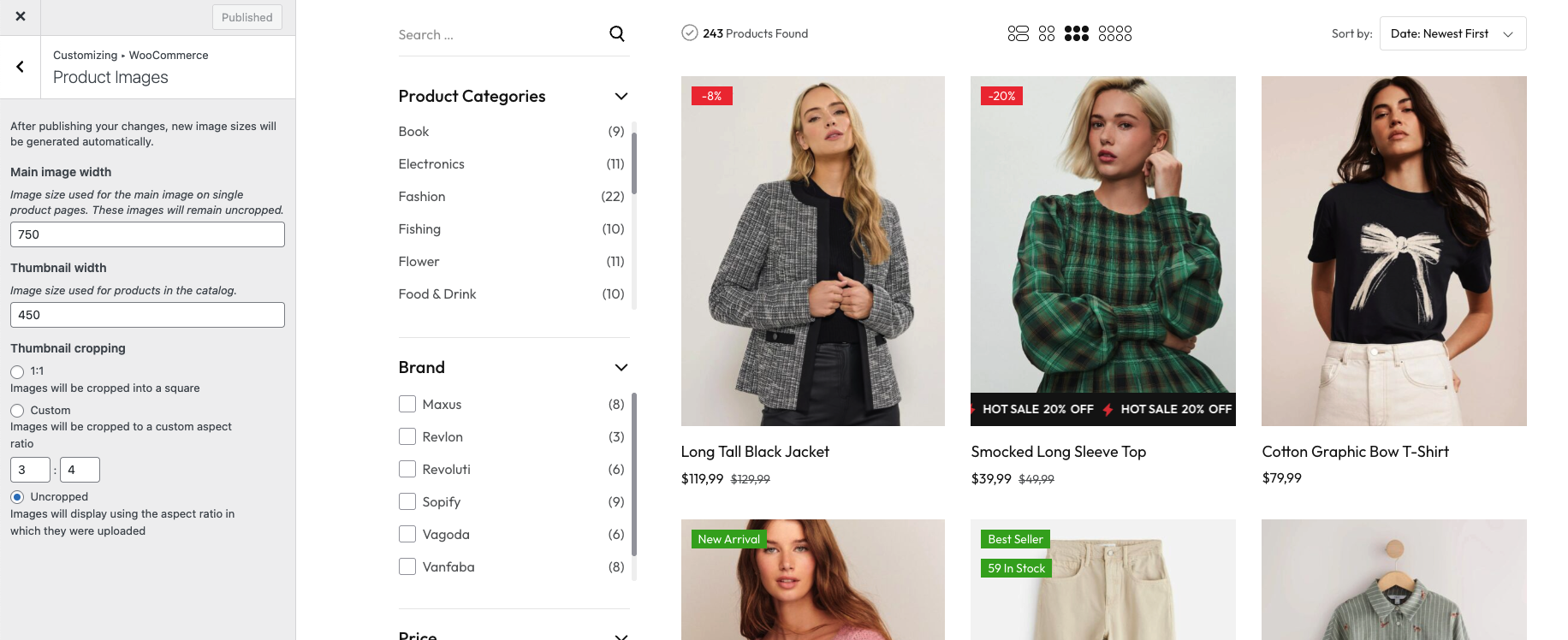
After publishing your changes, new image sizes will be generated automatically.