


Product Video
Add product videos to enhance product pages and provide customers with dynamic visual content. Product videos can be displayed from YouTube, Vimeo, or uploaded as MP4 files.
These settings are configured individually for each product in the product edit page. Go to Products → All Products, edit a product, and navigate to the Advanced tab to configure the video settings.
Product Video Type & Link
Configure the product video by selecting the video source type and entering the video URL.
Product Video Type:
Select the video source type for your product video:
- YouTube: Embed a YouTube video using the video URL
- Vimeo: Embed a Vimeo video using the video URL
- MP4: Upload or link to an MP4 video file
Product Video Link:
Enter the video URL based on the selected video type:
- YouTube: Enter the full YouTube video URL (e.g.,
https://www.youtube.com/watch?v=VIDEO_ID) - Vimeo: Enter the full Vimeo video URL (e.g.,
https://vimeo.com/VIDEO_ID) - MP4: Enter the direct link to your MP4 file or upload it to your media library

Frontend Display
When a product video is configured, customers will see a play button icon on the product image. Clicking the play button will display the video, allowing customers to watch product demonstrations, tutorials, or promotional content.
Frontend Example:
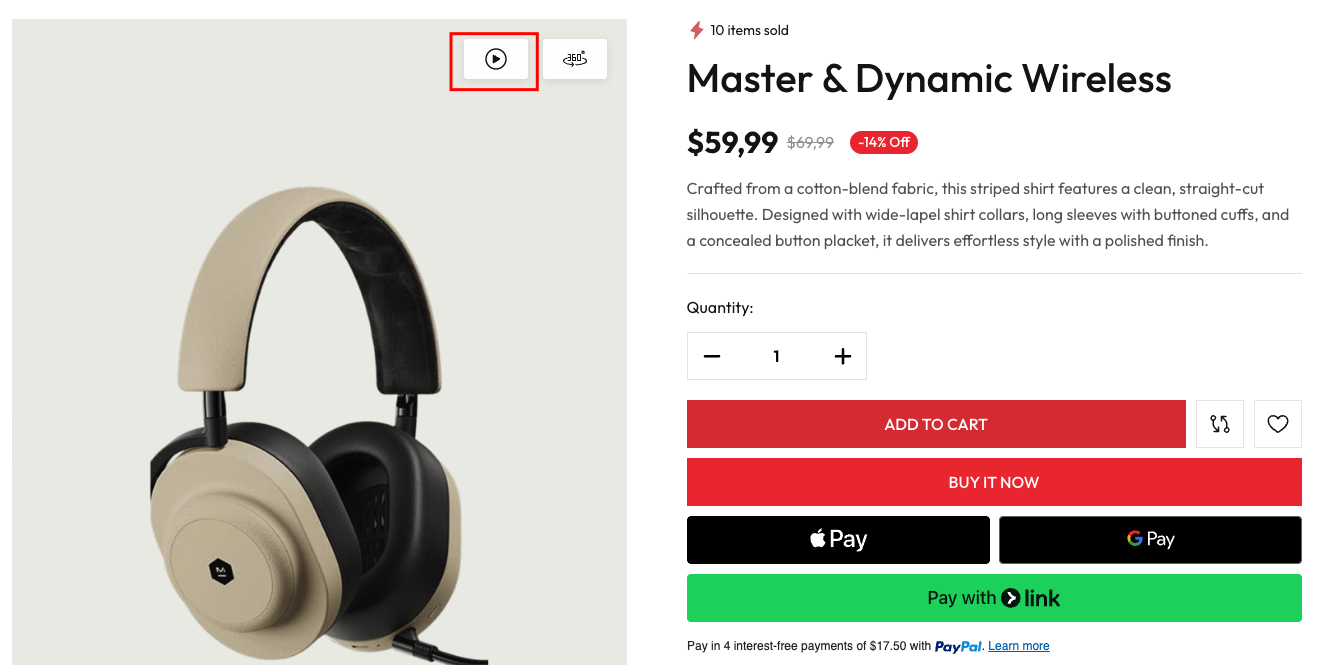
Product videos are great for showcasing product features, demonstrating how products work, or providing styling inspiration. Make sure your video URLs are publicly accessible and properly formatted.