


Be Posts Carousel
The Be Posts Carousel widget allows you to showcase WordPress posts in an interactive carousel slider on your website. It helps visitors easily browse recent or featured articles while keeping your content organized and visually engaging.
With this widget, you can highlight blog posts on your homepage, blog sections, landing pages, or content blocks. Each post card can display important elements such as the featured image, title, excerpt, metadata, and a Read More button.
The carousel layout allows visitors to smoothly navigate through multiple posts without taking up too much space on the page.
Key Features
- Display multiple WordPress posts in a responsive carousel slider
- Show featured images, titles, excerpts, and post metadata
- Include a Read More button linking to the full article
- Smooth carousel navigation with arrows or pagination dots
- Fully customizable using Elementor styling controls
- Ideal for homepage blog highlights, news sections, or featured articles
Frontend Example
Below is an example of how the Be Posts Carousel widget appears on the frontend of your website.
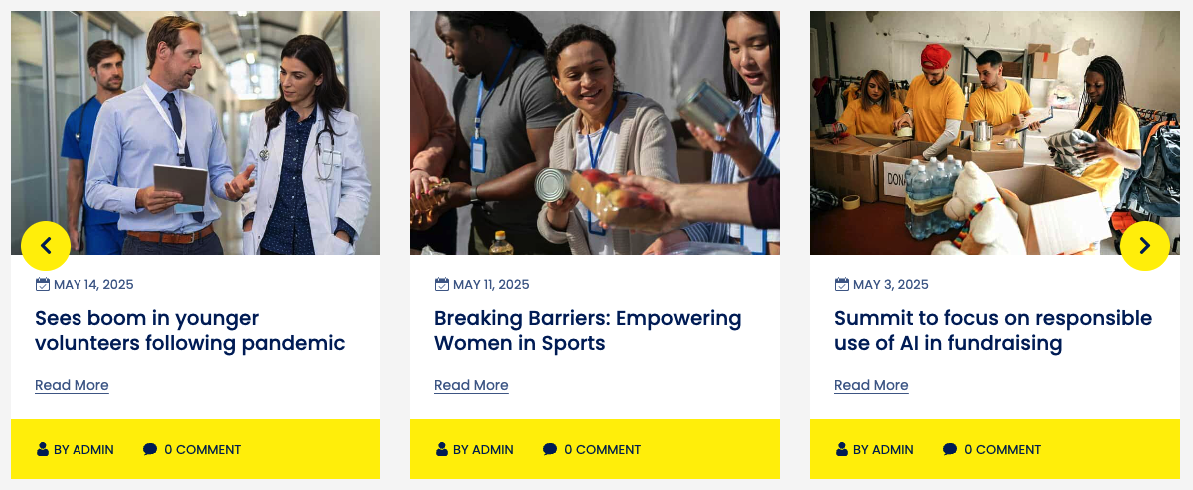
Each post card may display:
- Featured image
- Post title
- Post excerpt or summary
- Author name
- Publish date
- Category or tags
- Read More button
The carousel layout allows visitors to scroll through multiple posts while keeping the page layout clean and modern.
Backend Settings
The widget includes several configuration options within the Elementor editor, allowing you to control how posts are displayed on your website.
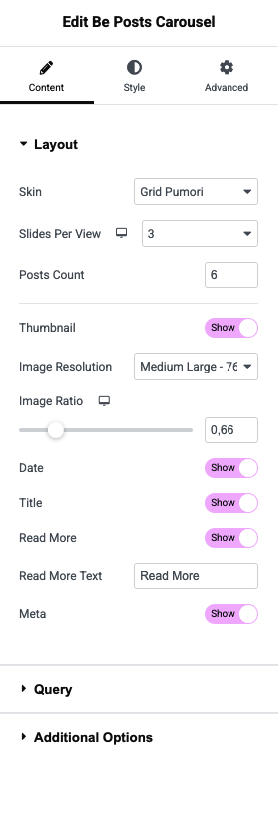
Available Options
- Select Post Source – Choose posts by category, tag, or manual selection
- Number of Posts – Define how many posts appear in the carousel
- Slides Per View – Control how many posts are visible at once
- Carousel Settings – Configure autoplay, navigation arrows, dots, and slide speed
- Content Display Options – Enable or disable elements such as excerpt, author, date, or categories
- Read More Button Settings – Customize button text and styling
- Style Controls – Adjust colors, typography, spacing, and card design using Elementor controls
💡 Tip:
Use the Be Posts Carousel widget on your homepage or blog pages to highlight featured or recent articles in a compact space while allowing visitors to easily browse more content.