


Installation
Follow these steps to get Woozio running on your WordPress site.
Prerequisites
- WordPress 6.4+ with admin access
- PHP 8.1 or later
- SSL certificate enabled on your domain
- WooCommerce plugin installed (if not already installed)
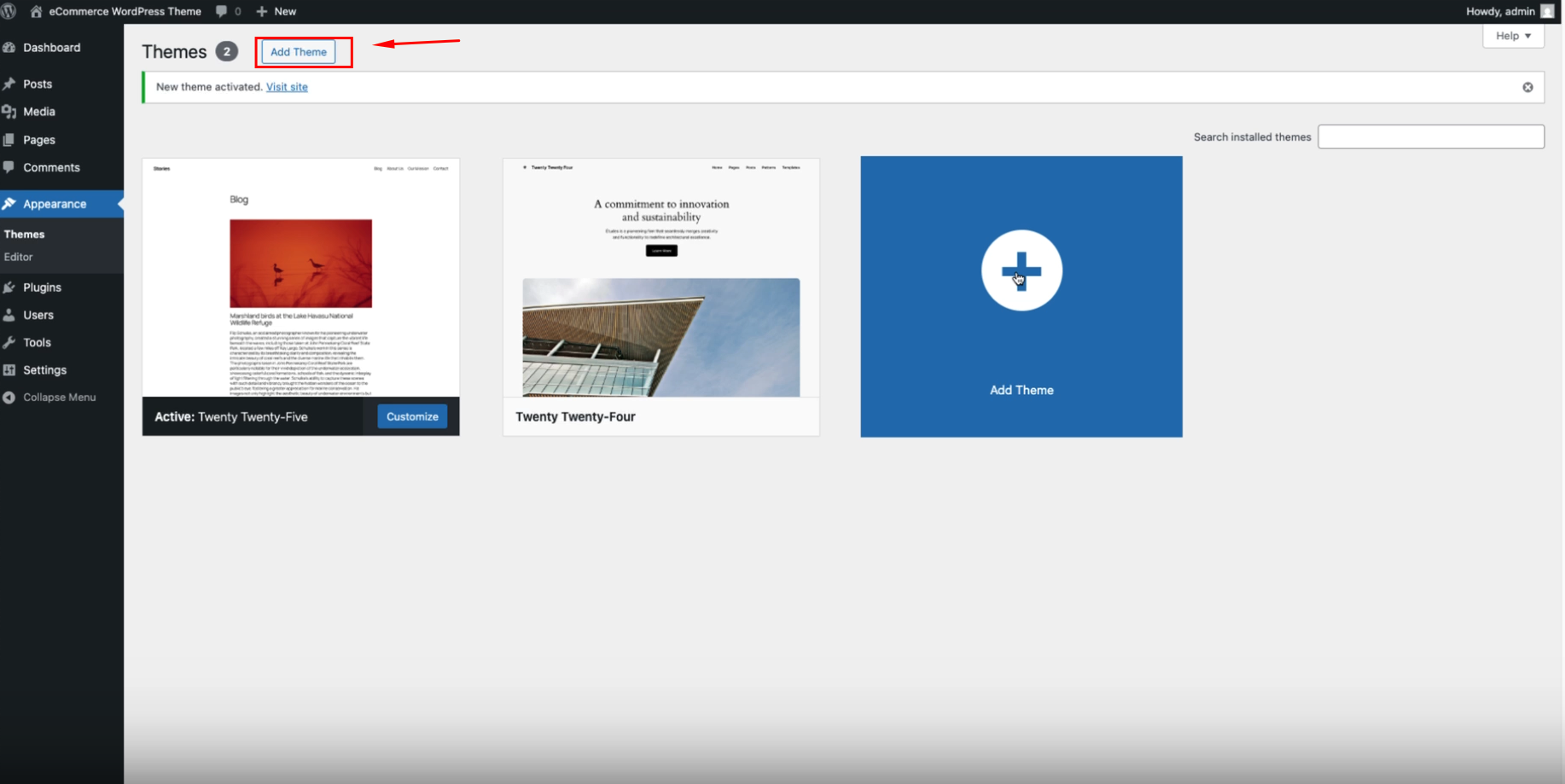
Step 1 — Navigate to Themes Page
- Log in to your WordPress admin dashboard.
- In the left sidebar, navigate to Appearance → Themes.
- You will see the Themes page with your currently installed themes.
Step 2 — Upload Theme
- On the Themes page, click the Add Theme button (or Upload Theme button) located at the top right of the page.
- This will take you to the "Add Themes" page.
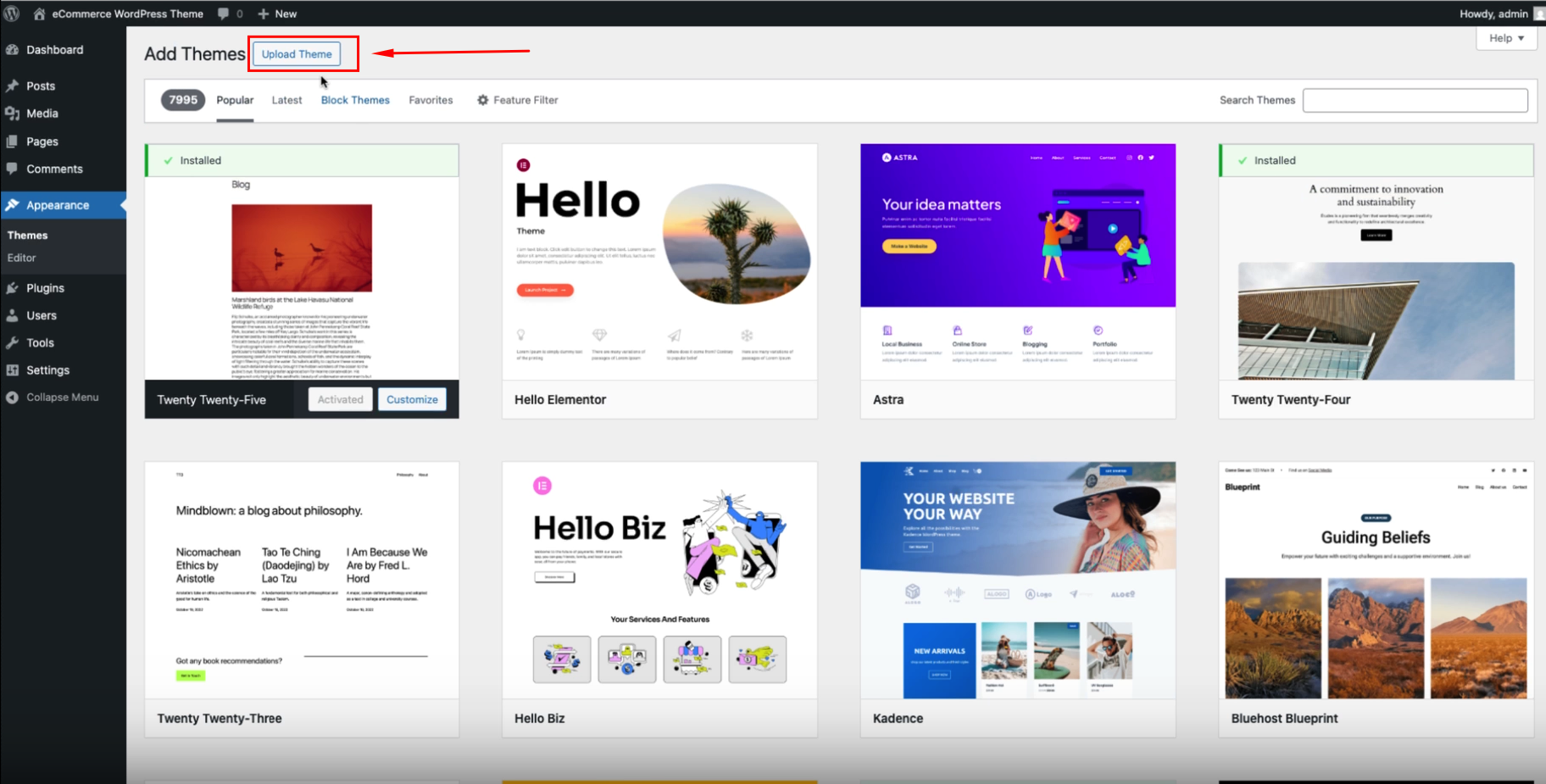
Step 3 — Choose and Install Theme File
- On the "Add Themes" page, scroll down to find the section that says: "If you have a theme in a .zip format, you may install or update it by uploading it here."
- Click the Choose File button and select your
woozio.zipfile from your computer. - Once the file is selected, you will see the filename displayed (e.g.,
woozio.zip). - Click the Install Now button to begin the installation process.
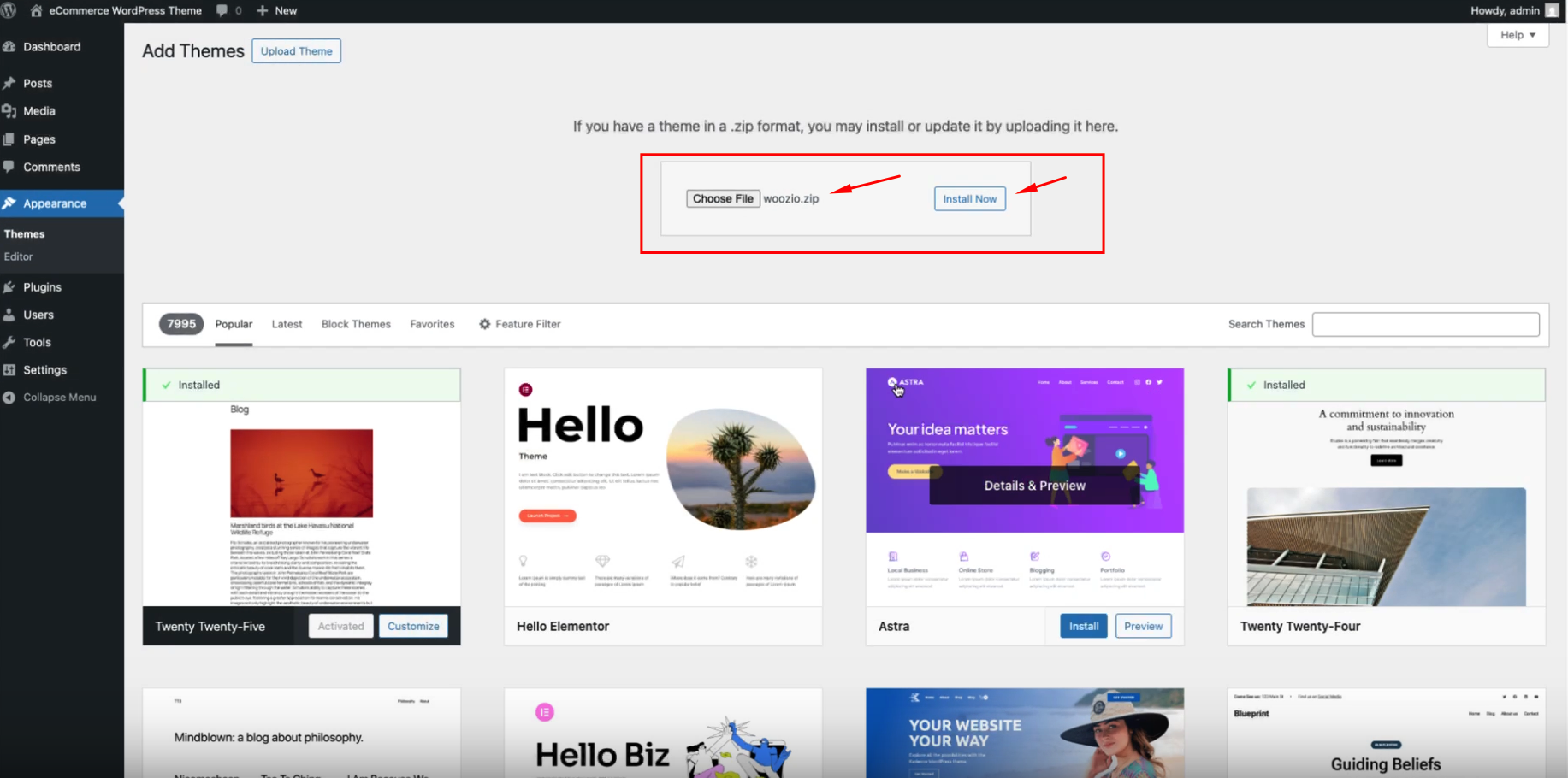
Make sure you have downloaded the latest version of Woozio theme from your purchase account. The theme file should be named woozio.zip.
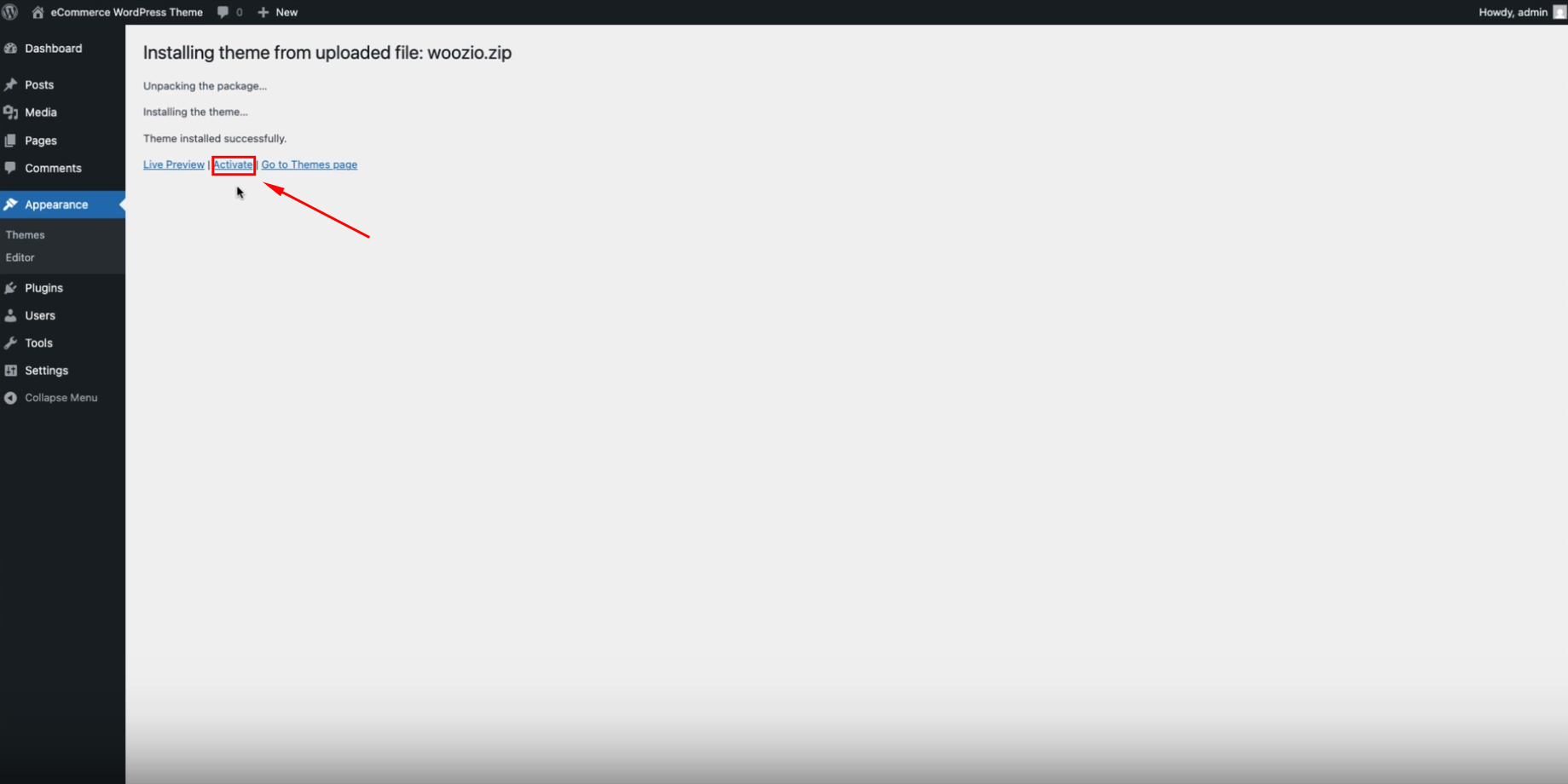
Step 4 — Activate Theme
- After the installation completes, you will see a success message: "Theme installed successfully."
- You will see three options:
- Live Preview — Preview the theme before activating
- Activate — Activate the theme immediately
- Go to Themes page — Return to the themes list
- Click the Activate link to activate Woozio theme on your site.
Next Steps
Once installation is complete:
- Import a Demo (optional) — Use the One-Click Demo Import to get a pre-built site layout.
- Configure Settings — Customize your theme settings through the WordPress Customizer or Woozio panel.
- Start Building — Begin creating your online store with Elementor page builder.
Ready to customize your site?
➡️ Continue with the Demo Import guide →