


How To Import Demo Data
Importing demo content gives you a fully configured store in minutes. Follow these steps to import a pre-built demo layout for your Woozio theme.
Prerequisites
Before importing a demo, ensure you have:
- Woozio theme installed and activated
- WordPress 6.4+ with admin access
- PHP 8.0 or later
- Sufficient server resources (memory and execution time)
- Disable caching plugins during import to avoid stale assets
Step 1 — Install Required Plugins
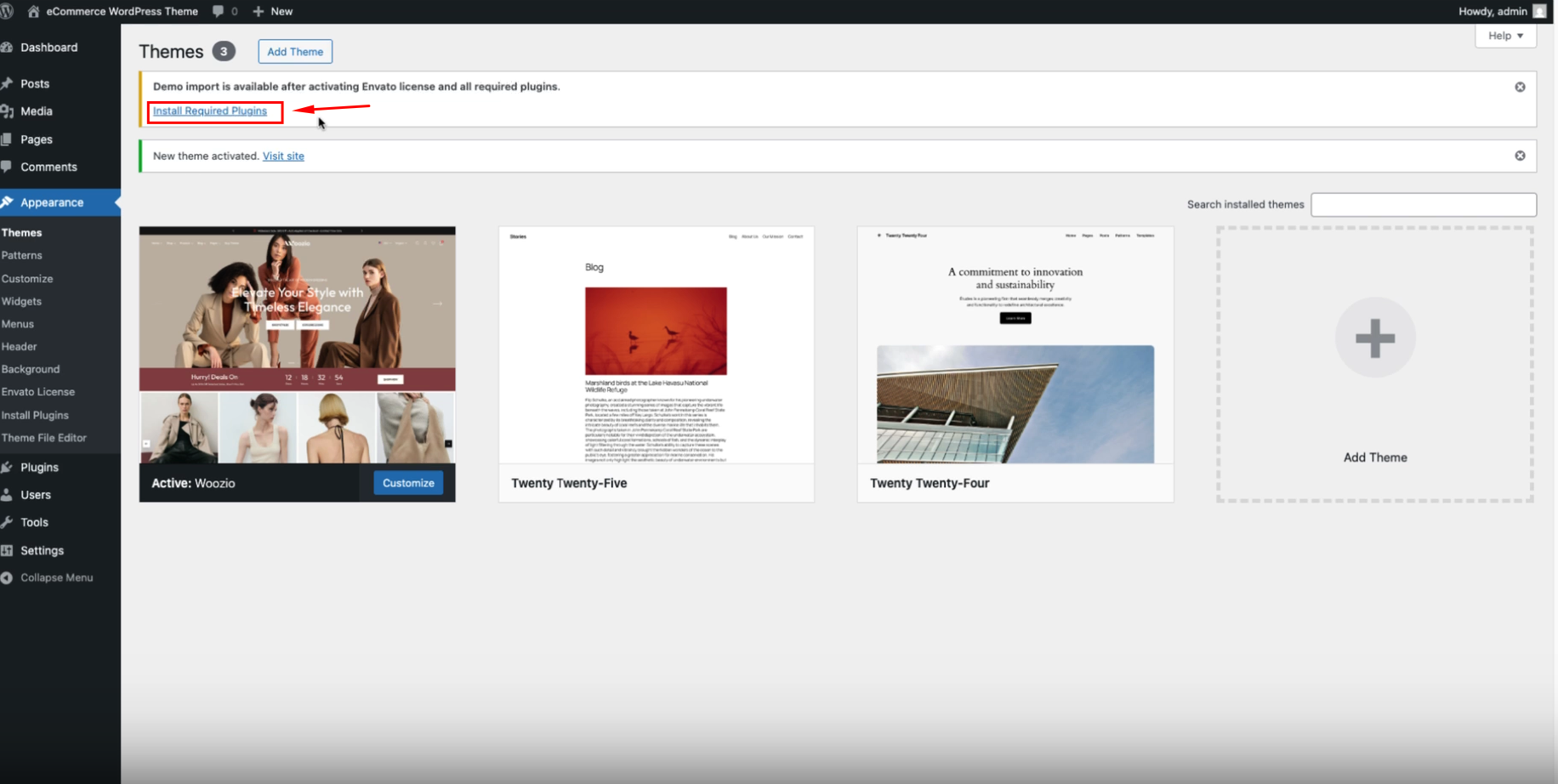
After activating the Woozio theme, you will see a notice on the Themes page indicating that demo import is available after activating Envato license and all required plugins.
- Navigate to Appearance → Themes in your WordPress admin.
- You will see a yellow notice banner stating: "Demo import is available after activating Envato license and all required plugins."
- Click the Install Required Plugins link to proceed.
Make sure you have the license keys for premium plugins (Advanced Custom Fields PRO, Elementor Pro, Gravity Forms, Smart Slider 3 Pro) ready before installation.
Step 2 — Bulk Install Plugins
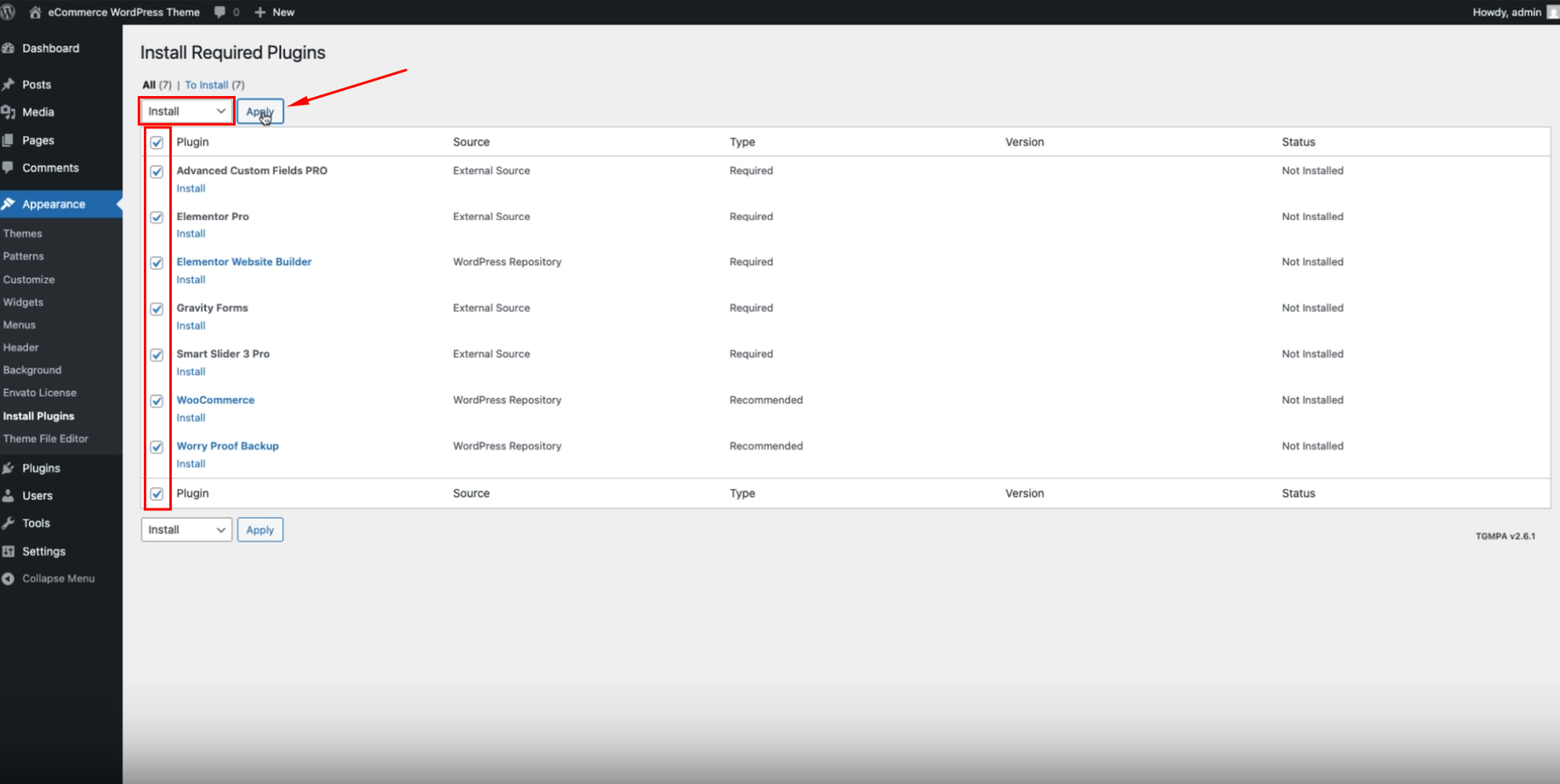
- On the "Install Required Plugins" page, you will see a list of all plugins that need to be installed.
- All plugins are checked by default. You can uncheck any plugins you don't want to install, or leave them all checked to install everything at once.
- From the Bulk Actions dropdown at the top, select Install.
- Click the Apply button to begin the installation process.
Do not refresh the page or close the browser tab during the installation process. The process may take several minutes depending on your server speed.
Step 3 — Activate Your Theme License
To access demo import functionality, you must first activate your Woozio theme license. License activation enables premium features, automatic updates, and one-click demo imports.
Accessing License Activation
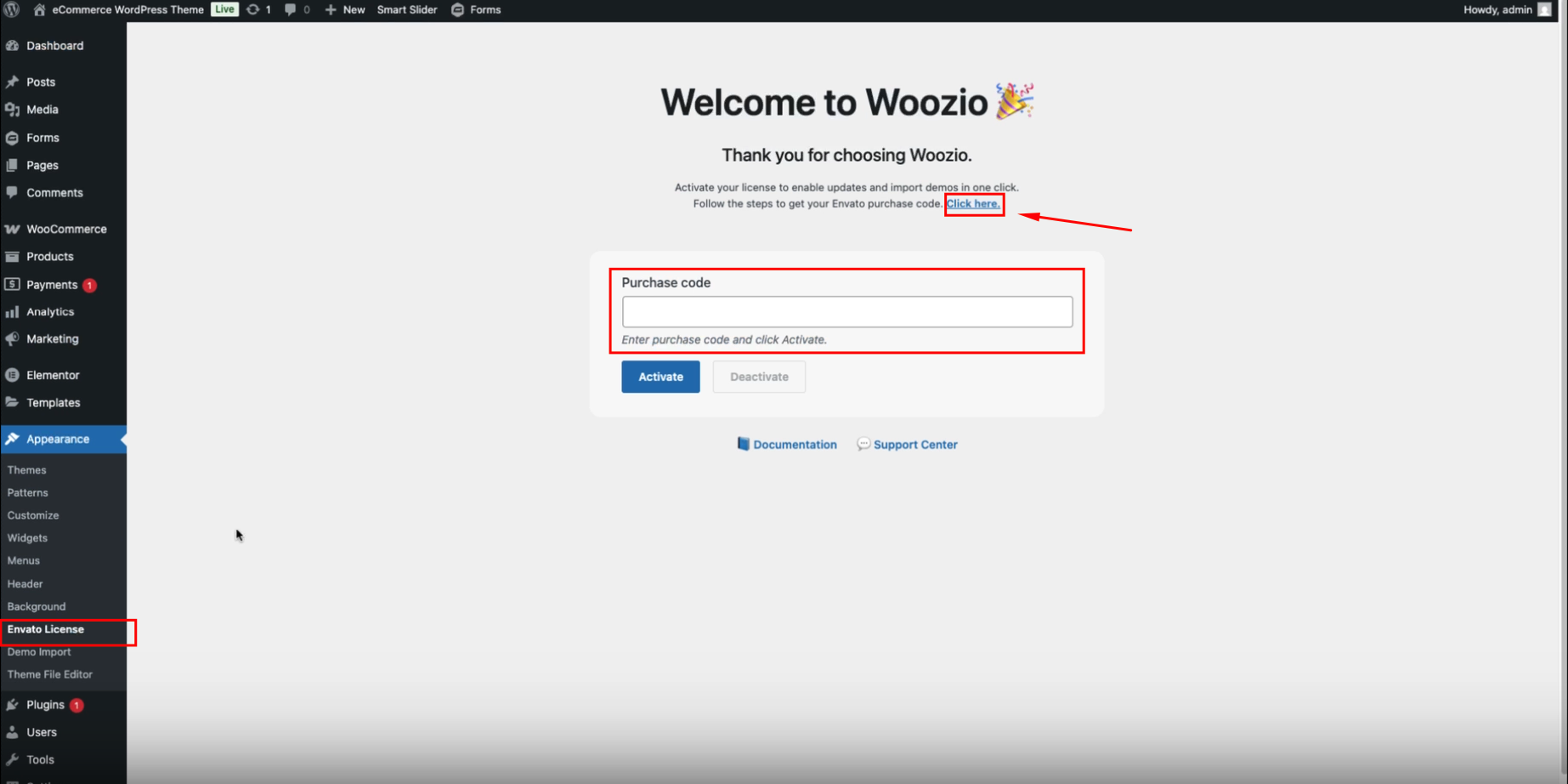
- Navigate to Appearance → Envato License in your WordPress admin sidebar.
- You'll see the "Welcome to Woozio" activation page with clear instructions.
- The page displays: "Activate your license to enable updates and import demos in one click. Follow the steps to get your Envato purchase code."
Entering Your Purchase Code
- Locate the Purchase code field on the activation page.
- Enter your valid Envato Purchase Code from ThemeForest.
Don't have your purchase code? Follow our step-by-step guide: How to Get Your Purchase Code from ThemeForest →
- Click the Activate button to complete the license activation.
Successful Activation
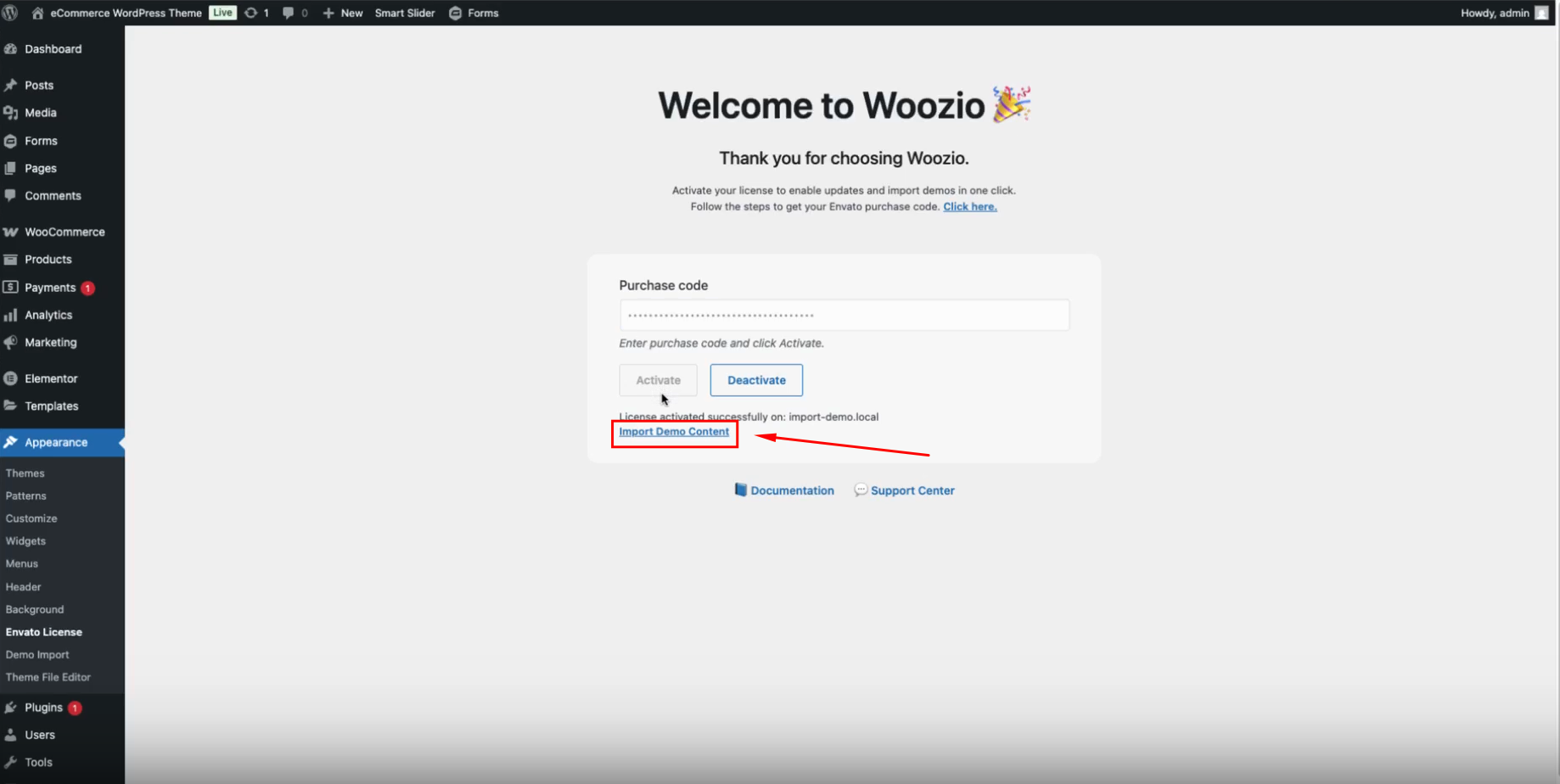
Once activated successfully, you'll see:
- A confirmation message: "License activated successfully on: [your-domain]"
- A prominent Import Demo Content button becomes available
- Access to automatic theme updates and premium support
Keep your purchase code secure and only use it on domains you own. Each license is valid for one domain only.
Step 5 — Choose and Import a Demo
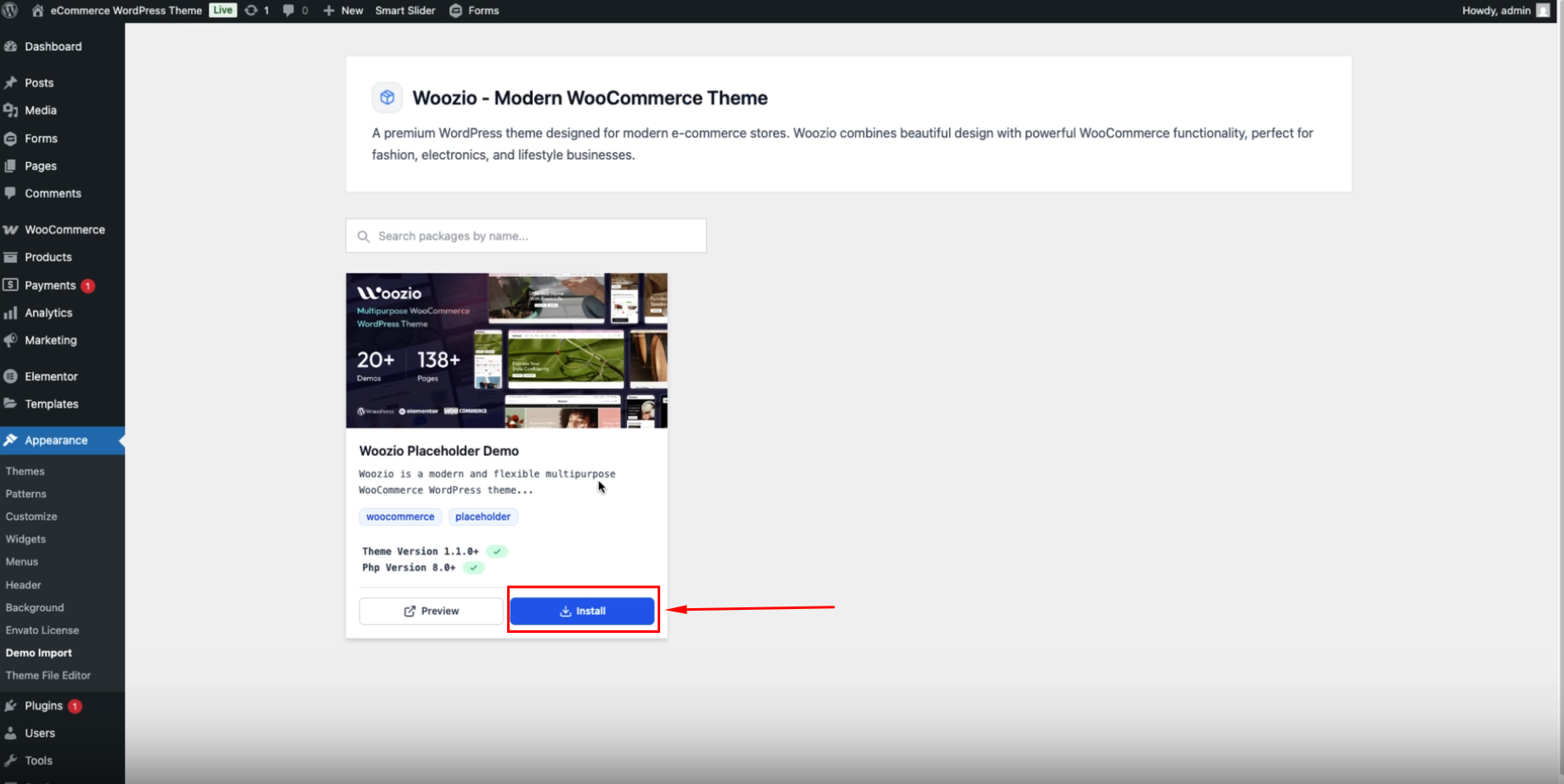
- After activating your license, you can click the Import Demo Content link that appears on the license page, or navigate to Appearance → Demo Import in your WordPress admin sidebar.
- You will be taken to the "Woozio - Modern WooCommerce Theme" page.
- Browse through the available demo previews displayed as cards.
- Click the Install button on the demo you want to use.
Step 6 — Confirm and Start Import
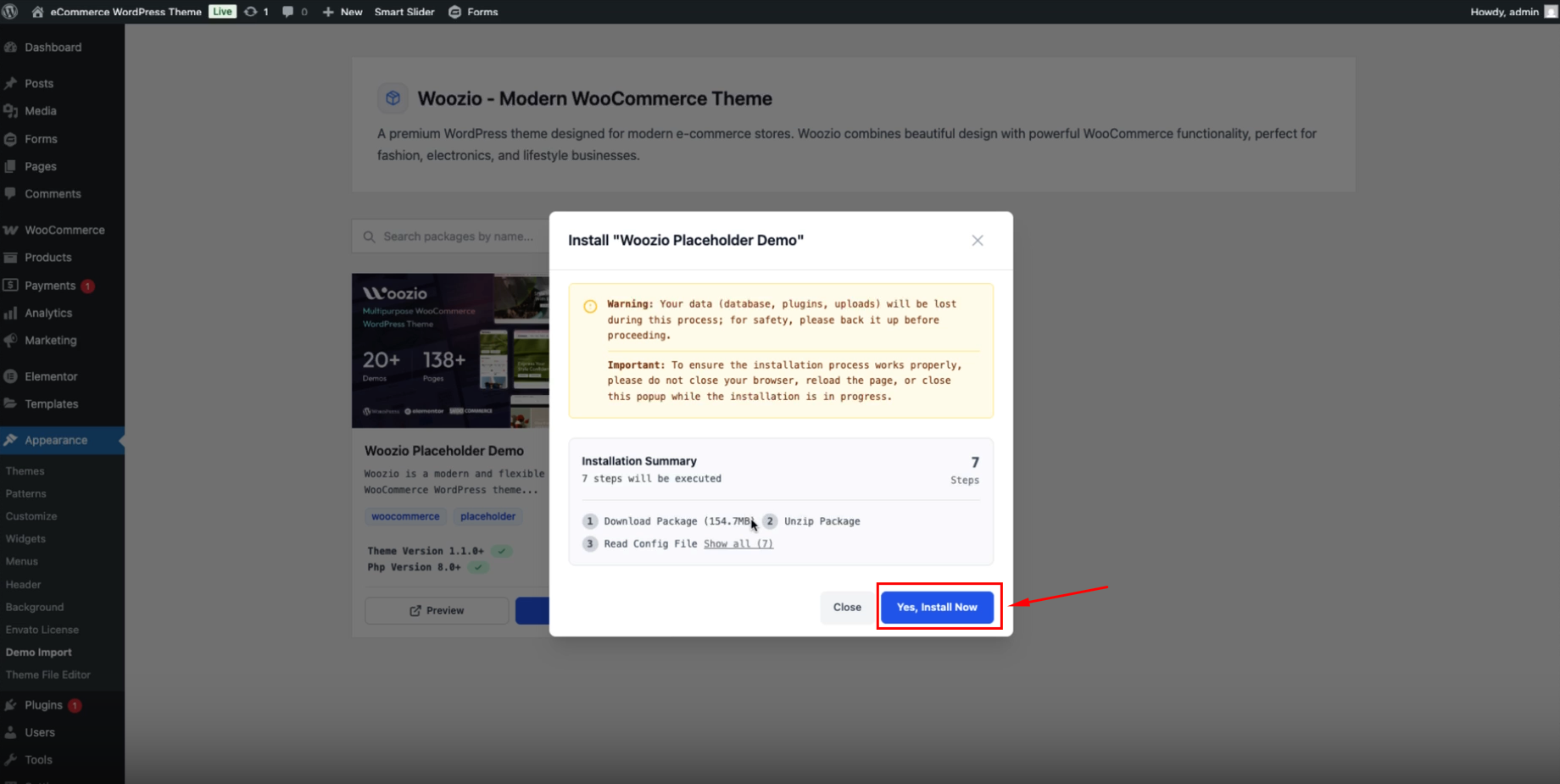
- After clicking Install, a modal popup will appear asking you to confirm the installation.
- The popup will display important warnings:
- Warning: Your data (database, plugins, uploads) will be lost during this process; for safety, please back it up before proceeding.
- Important: To ensure the installation process works properly, please do not close your browser, reload the page, or close this popup while the installation is in progress.
- Click the Yes, Install Now button to start the import process.
Step 7 — Wait for Import Completion
Critical: Do not refresh the page, close the browser tab, or close the popup during import. Large demo packages with many images can take 5-15 minutes to complete, depending on your server speed and internet connection. The installation process must complete uninterrupted.
Once the import is complete, you will see a success message and can visit your site to see the imported demo content.
Need help?
➡️ Visit our Support page → or contact us at bearsthemes@gmail.com